Activity log
In short: Open Settings (gear menu, top-right) → Activity Log in the left-hand menu. It's a read-only list of changes in your workspace — settings updates, support-access toggles, template changes and more — newest first, each showing how long ago it happened and who did it. You need the Manage Settings permission.
Overview
The Activity Log is a running, read-only record of changes made in your ActiveDonor workspace — for example settings being updated, support access being switched on or off, or template changes. It helps you see who did what and when. You can't edit or delete entries.
Before you start
You'll need:
- The Manage Settings permission. Without it, the Activity Log item doesn't appear in the Settings menu.
📌 Note: The Activity Log is view-only. There's nothing to configure here — it's a record you read.
Opening the log
Step 1: Open Activity Log
In the top navigation bar, open the gear / cog dropdown and select Settings. In the left-hand Settings menu, select Activity Log.
Step 2: Read the table
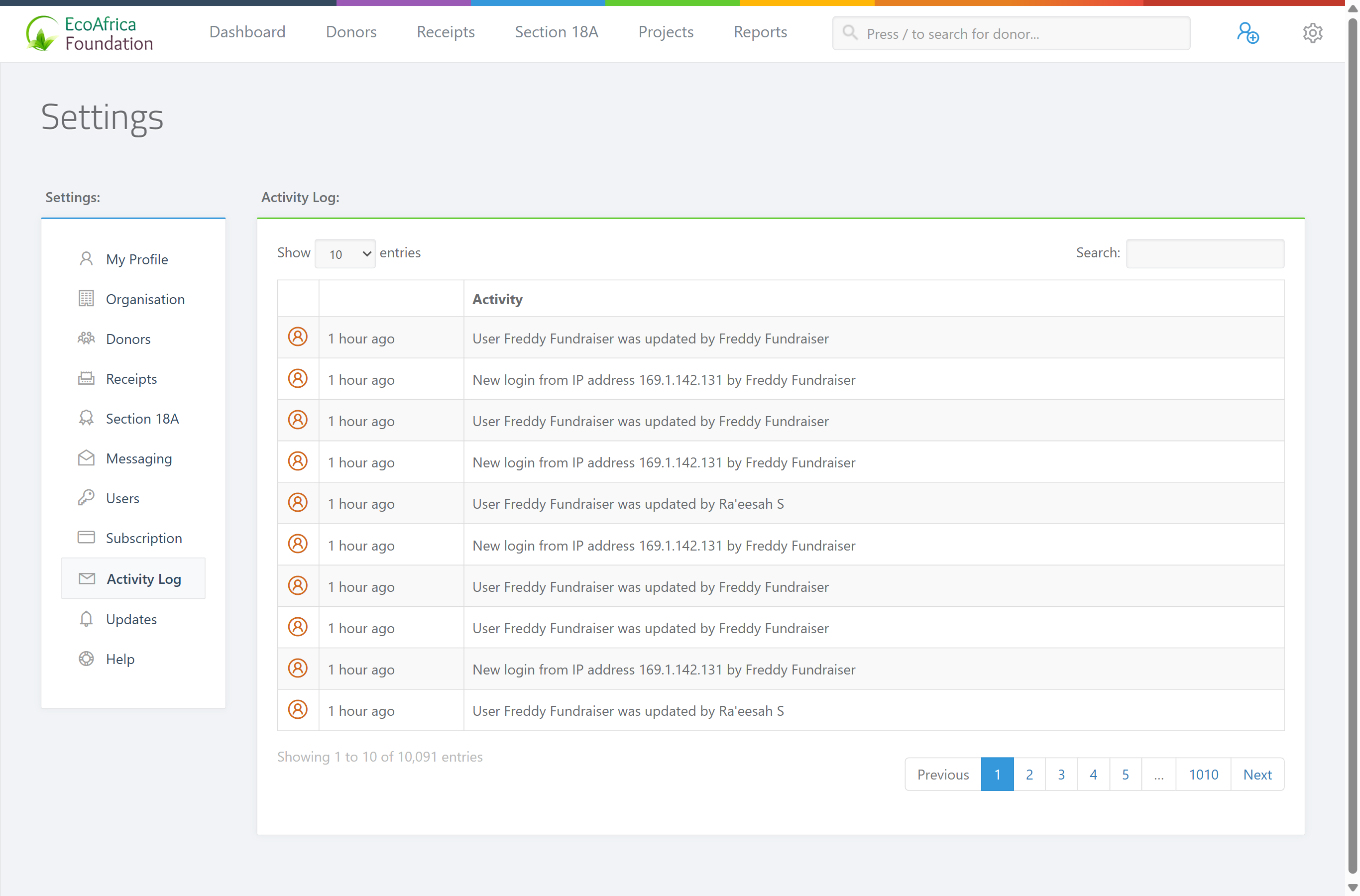
The page shows an Activity Log table. Entries load automatically and are sorted newest first.
How to read the log
Each row has three columns:
- An icon column (left).
- A timestamp column showing how long ago the action happened, in plain language such as "5 minutes ago" or "2 days ago".
- An Activity column describing what happened.
The log also records who made each change (the "causer"):
- Changes by a logged-in team member show that user's name. If the user record can't be found, it shows "Unknown User".
- Changes attributed to a donor show the donor's full name; a deleted donor still shows their name where possible, otherwise "Deleted Donor".
- Actions performed by the system, or where no specific person is recorded, show ActiveDonor.
Examples of entries you may see: "Organisation settings were updated", "Section 18A Certificate settings were updated", "Support access was enabled until {date/time}", "Support access was disabled", and template changes such as 'Email template "{name}" has been deleted.'
What this does not do — and how it differs from the Audit log
The Activity Log here is the general settings-level change log. It is separate from:
- the Audit log under Reports — a more detailed, record-level report of changes (see Audit log); and
- the login history shown on your own profile page (see Editing your profile (My Account)).
It is also not an "email history" of messages sent to donors — to see what was emailed to a specific donor, open that donor's record.
Common issues & solutions
| What you see | What it means | How to fix it |
|---|---|---|
| An entry shows "ActiveDonor" as the actor | The action was performed by the system, or no specific user was attached. | Nothing to fix — this is expected for automated changes. |
| An entry shows "Deleted Donor" | The donor record was deleted after the activity was logged. | The entry is kept for history; no action needed. |
| An entry shows "Unknown User" | The user who made the change can no longer be found. | No action needed; the record is preserved. |
| You don't see Activity Log in the menu | You don't have the Manage Settings permission. | Ask a user manager to grant Manage Settings — see Roles and permissions. |
FAQ
Where do I see the history of changes / who changed a setting? Open Settings → Activity Log. Each row shows what changed, how long ago, and who did it.
Is the Activity Log the same as the Audit log? No. The Activity Log is the settings-level change record. The Audit log under Reports is a more detailed, record-level report — see Audit log.
Can I edit or delete log entries? No — the Activity Log is read-only.
Where can I see my own login history? On your own profile page, not here — see Editing your profile (My Account).
Why does an entry say "ActiveDonor" instead of a person? The change was made automatically by the system, or no specific user was recorded against it.
Related
- Audit log
- Granting ActiveDonor support access to your account
- Organisation settings
- Message and email templates
- Editing your profile (My Account)
Need a hand?
If you can't find an expected change in the log, contact ActiveDonor support and tell us roughly when it happened and what record it affected.