Logging in and signing out
In short: Open your charity's own ActiveDonor address (for example https://yourcharity.activedonor.com), enter your email and password, and select Login. If you don't know your charity's address, go to the main activedonor.com login page and ActiveDonor will email you the login links for any workspaces tied to your email.
Overview
ActiveDonor gives each charity its own web address — a subdomain such as yourcharity.activedonor.com, chosen as the Workspace ID when the account was registered. You log in at that address with your email and password. The main activedonor.com login page does not log you in directly; instead it helps you find your own workspace address.
Before you start
You'll need:
- Your charity's ActiveDonor address (subdomain). If you don't have it, use the "If you don't know your charity's address" steps below to have it emailed to you.
- Your email address and password. Forgotten your password? See Resetting your password — you request a reset link from your charity's login page.
Logging in at your charity's address
Step 1: Open your charity's address
Open your charity's ActiveDonor address in a web browser, for example https://yourcharity.activedonor.com.
Step 2: Enter your details
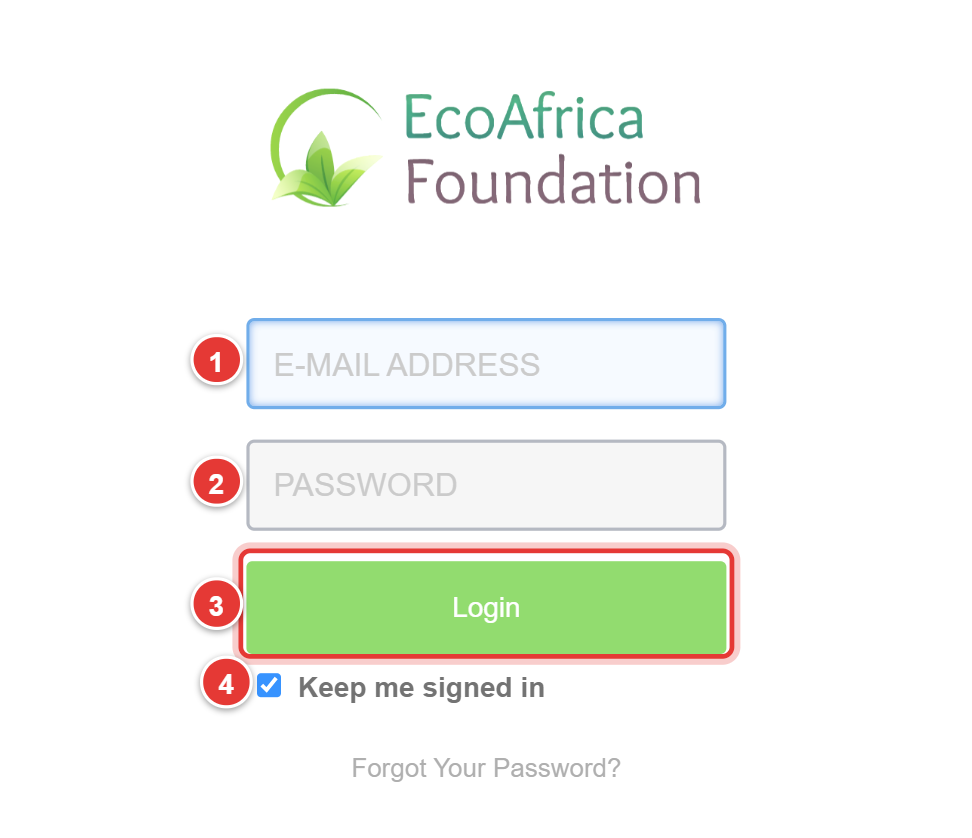
On the login panel, enter your E-MAIL ADDRESS and PASSWORD.
Step 3: Choose whether to stay signed in
Leave Keep me signed in ticked to stay logged in on this device between visits, or untick it to be signed out when you close the browser. This box is ticked by default.
Step 4: Log in
Select Login. You're taken to your dashboard. If you haven't finished onboarding, you're sent to the onboarding wizard first (see Completing the onboarding wizard); if your setup checklist is incomplete, you land on the setup checklist (see Using the setup checklist).
If your login fails, an error message appears above the form explaining the problem (for example an unrecognised email or password).
If you don't know your charity's address
If you go to the main activedonor.com login page instead of your own subdomain, ActiveDonor does not log you in there — it helps you find your workspace:
- On the central login page, enter your email under the E-mail address: label.
- Select Next →.
- ActiveDonor emails you a reminder containing the login links for any workspaces tied to that email address. The page confirms: "If an account exists for this email, you will receive an email with your login information shortly."
- Open that email and follow the link to your charity's login page, then sign in there.
📌 Note: That same confirmation message appears whether or not an account exists, so the page never reveals which email addresses are registered. If no email arrives, the address may not be on any workspace — check for typos or contact support.
Signing out
- In the top navigation bar, open the gear / cog dropdown menu (far right).
- Select Logout.
- You're signed out and shown a confirmation reading "You have been logged out." with a Login to ActiveDonor button to sign back in.
What login records
Each time you sign in, ActiveDonor records the date, time and IP address of the login against your user account and writes an activity-log entry ("New login from IP address …"). You can review these on your own profile page (see Editing your profile (My Account)) and in the Audit log.
Common issues & solutions
| What you see | What it means | How to fix it |
|---|---|---|
| "If an account exists for this email, you will receive an email with your login information shortly." | You're on the central activedonor.com login page, not your charity's subdomain. |
Check your inbox for the reminder email with your workspace login link, then log in at that address. |
| Login fails with an unrecognised email or password error above the form. | The email or password doesn't match an account on this workspace. | Confirm you're on the right charity's address and re-check your details. If you've forgotten your password, see Resetting your password. |
| You keep getting signed out when you reopen the browser. | Keep me signed in was unticked. | Tick Keep me signed in when you log in. |
| You can't remember your charity's address. | You need the workspace link emailed to you. | Use the central activedonor.com login page to have your workspace links emailed. |
FAQ
I forgot my charity's web address — how do I get in?
Go to activedonor.com, enter your email, and select Next →. ActiveDonor emails you the login link for every workspace tied to that email.
What does "Keep me signed in" do? Ticked (the default), it keeps you logged in on that device between visits. Unticked, you're signed out when you close the browser.
Why does it say "failed to login" / my password isn't accepted? Either the email/password is wrong for this workspace, or you're on the wrong charity's address. Re-check both. To reset a forgotten password, see Resetting your password.
I can't log in while travelling / from outside South Africa. Some organisations restrict logins to certain locations or networks. This is set up by your organisation, not on this login page — contact your own ActiveDonor administrator or ActiveDonor support to have your access allowed.
I can't log into the mobile app / I get a 404 or "invalid organization ID" on the app. These web help articles cover the browser-based web app. For mobile-app sign-in problems (404 errors, "invalid organization ID", "failed to login"), contact ActiveDonor support — make sure you're using your correct Workspace ID, which is the short name in your charity's web address.
What this does not do
- The main
activedonor.compage does not log you in — it only emails you your workspace links. - This article does not cover the mobile app. Mobile-app errors (404, invalid organization ID) are handled by support.
- Logging in does not change any location or network restrictions your organisation may have set.
Related
- Resetting your password
- Registering for an ActiveDonor account
- Understanding your dashboard
- Editing your profile (My Account)
- Granting ActiveDonor support access to your account
Need a hand?
If you can't get in and the steps above don't help, contact ActiveDonor support with your charity's name (or Workspace ID) and the email address you're using, and we'll check your account.