Adding and managing contacts on a donor
In short: Open the donor form (add or edit a donor), click the Contacts button, fill in the contact's First Name, Last Name, Cellphone, Email and Relationship, then click Create Donor (or Update Donor). You need the Manage Donors permission. Contacts are reference people only — they don't receive receipts or certificates.
Overview
A contact is a person you deal with at a donor — such as the treasurer of a company, the trustee of a trust, or a next of kin. Contacts are most useful for organisation donors but can be added to any donor. They are separate from the donor's own phone numbers and email addresses, and exist so your team knows who to speak to.
Before you start
You'll need:
- The Manage Donors permission.
- The donor open in the add or edit form. Contacts are added on the donor form, not from a separate page.
📌 Note: Contacts do not receive certificates or receipts. To send a certificate or message to an address, add it as the donor's own email in the Contact Information panel instead — see Adding phone numbers, emails and addresses.
Adding contacts
Step 1: Open the donor form
Either add a new donor (the Add New Donor person-plus icon in the top navigation bar) or edit an existing one (the Manage button on the donor profile, then Edit Donor).
Step 2: Add a contact block
Click the Contacts button on the donor form. A contact block appears.
Step 3: Fill in the contact's details
- First Name
- Last Name
- Cellphone
- Relationship — the contact's role at the donor, for example "Treasurer", "Trustee" or "Director".
Step 4: Add more contacts (optional)
Click Contacts again to add another block. Remove a block with the small delete (×) control on the block.
Step 5: Save
Click Create Donor (or Update Donor when editing) to save the donor together with its contacts.
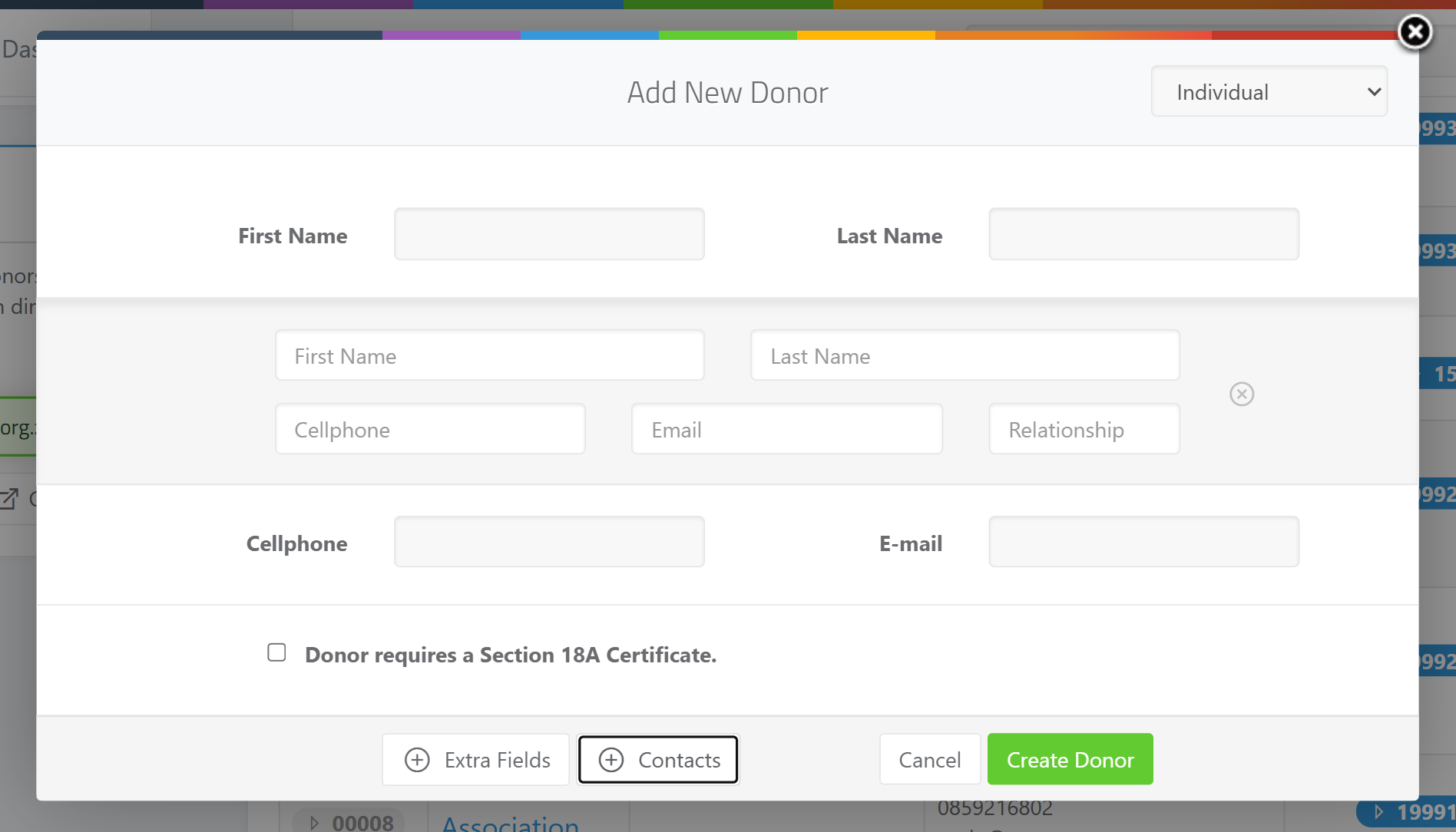
⚠️ Important: For non-individual donors, a contact block's First Name and Last Name are required once the block is added — empty contact blocks are not saved.
Viewing contacts on the donor profile
Each saved contact appears as its own small panel on the left of the donor's profile. The panel shows the contact's Relationship as a label, the contact's name, and their cellphone and email where recorded.
Editing or removing a contact
Open the Edit Donor form (the Manage button, then Edit Donor) and adjust the contact blocks. From there you can update a contact's name, cellphone, email and relationship, or remove a contact you no longer need.
Field reference
| Field | Required? | Notes |
|---|---|---|
| First Name | Required for non-individual donors | The contact's first name. |
| Last Name | Required for non-individual donors | The contact's surname. |
| Cellphone | Optional | A direct number for the contact. |
| Optional | A direct email for the contact. | |
| Relationship | Optional | The contact's role, e.g. Treasurer, Trustee, Director. |
Common issues & solutions
| What you see | What it means | How to fix it |
|---|---|---|
| The contact doesn't appear on the profile | The donor wasn't saved, or the block was left empty. | Click Create Donor / Update Donor after filling in the block; empty blocks are not saved. |
| "The contact's first name is required" / "The contact's last name is required" | A contact block on a non-individual donor is missing a name. | Enter the contact's first and last name, or delete the empty block. |
| The contact didn't get the emailed certificate | Contacts are reference-only and don't receive mail. | Add the address as the donor's own email and set it as default — see Adding phone numbers, emails and addresses. |
FAQ
How do I add a person or next of kin to a company profile? Open the company donor, click Contacts, and fill in the person's name, cellphone, email and relationship (e.g. "Next of Kin" or "Treasurer"). Save with Update Donor.
Can a contact receive receipts or certificates? No. Contacts are for reference only. To email documents to someone, add their address as the donor's email in the Contact Information panel.
How do I remove a contact? Open Edit Donor, then use the delete (×) control on the contact block and save.