title: Message and email templates summary: How to view, create, edit and delete the reusable email templates ActiveDonor uses for receipts and certificates, plus every placeholder you can drop into a template. keywords: [message templates, email templates, message template, add email text, email body, subject line, placeholders, merge fields, %first_name%, %receipt_no%, %certificate_no%, default template, receipt email, certificate email, thank you email, WhatsApp template, can I send WhatsApp, title case, template assigned to project]
Message and email templates
In short: Open Settings (gear menu, top-right) → Messaging → Templates tab. Click Add Template to create a new Receipt or Certificate email, give it a name, subject and body, and drop in placeholders like %first_name% that fill in automatically per donor. You need the Manage Settings permission. Every type keeps a built-in Default template you can edit but not delete.
Overview
Message templates are reusable email bodies ActiveDonor uses when it sends receipts and Section 18A certificates to your donors. Each template has a type, a name, a subject line and a body, and can include placeholders (such as %first_name%) that are replaced with each donor's real details when the message goes out. Set up your wording once, and every receipt or certificate email reuses it.
ActiveDonor also keeps system templates for donor information-update requests and for WhatsApp messages. Those are used automatically by other features — you can edit the existing ones, but the Add Template form only lets you create Receipt and Certificate types (see "Can I add a WhatsApp template?" below).
Before you start
You'll need:
- The Manage Settings permission.
- To know where templates live: Settings → Messaging → Templates tab. (The Newsletter Sync tab on the same page is covered in Syncing your newsletter list.)
📌 Note: Every type has a built-in template named Default that ActiveDonor falls back to when no specific template is chosen. The Default template cannot be deleted, and its Name and Type are locked — you can change only its Subject and Body.
Viewing your templates
Step 1: Open the Templates tab
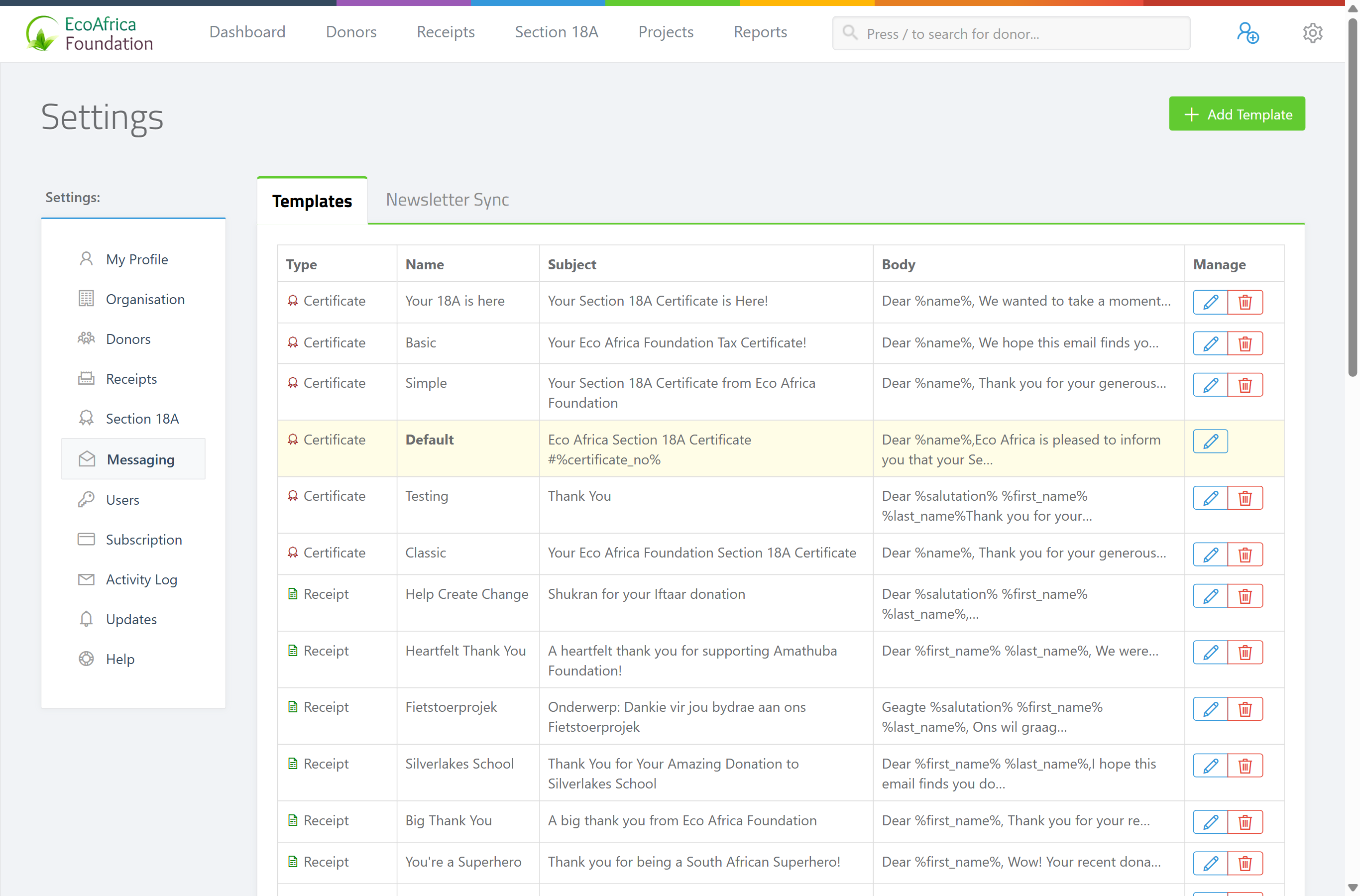
In the top navigation bar, open the gear / cog dropdown and select Settings. In the left-hand Settings menu, select Messaging, then open the Templates tab.
Step 2: Read the list
The Templates tab lists all your templates in a table with columns Type, Name, Subject, Body (a 60-character preview) and Manage. Templates are grouped by type, and the Default template of each type is shown in bold.
Creating a template
Step 1: Open the create form
On the Templates tab, click Add Template (top right). A pop-up titled "Create New Email Template" opens.
Step 2: Choose the type
Choose the Type from the dropdown — Receipt or Certificate. The Placeholders panel on the left updates to show the placeholders available for that type.
Step 3: Name it
Enter a Name. Names must be unique within their type, and are automatically saved in Title Case (for example "monthly receipt" becomes "Monthly Receipt").
Step 4: Write the subject and body
Enter the Subject line, then write the Body in the rich-text editor. Insert any placeholder for that type by typing it exactly as shown in the Placeholders panel (for example %first_name%).
Step 5: Save
Click Save Template. A "Template has been saved." confirmation appears and the new template joins the list.
Editing a template
Step 1: Open it
On the Templates tab, find the template and click the pencil (edit) icon in its Manage column. A pop-up titled "Edit {Type} Template" opens with the current values.
Step 2: Change and update
Change the Type, Name, Subject or Body as needed, then click Update Template. A "Template has been updated." confirmation appears.
📌 Note: For the Default template, the Name and Type are locked (sent as hidden values) — you can change only its Subject and Body.
Deleting a template
Step 1: Delete
On the Templates tab, click the trash icon in the template's Manage column and confirm. (The trash icon is not shown for a Default template.) A confirmation reading 'Email template "{name}" has been deleted.' appears.
You cannot delete a template if:
- it is the Default template (you'll see "Default email template cannot be deleted."); or
- it is assigned to a project (you'll see "Email template {name} is assigned to a project and cannot be deleted."). Open the project and change or clear its assigned email template first — see Managing projects.
Template types and their placeholders
Placeholders are written between percent signs and are replaced with the donor's or document's real values when the message is sent. When a template is used for a single receipt or certificate, the placeholders are filled in; in batch mode the raw placeholders are returned so the system can fill them per recipient.
Receipt
Used when emailing a donation receipt:
%donor_no%— the donor's number (zero-padded, e.g.00042).%salutation%— the donor's salutation.%first_name%— first name (for an Individual or Estate, the donor's own; for an entity, the first contact's, or the entity name if there's no contact).%last_name%— surname.%receipt_no%— the receipt number.%receipt_amount%— the receipt amount.%receipt_date%— the date the donation was received.
Certificate
Used when emailing a Section 18A certificate:
%name%— the recipient's name.%certificate_no%— the certificate number.%receipt_amount%— the amount.%receipt_date%— the date issued.
Receipt (WhatsApp)
A system template used for WhatsApp receipt messages (not creatable from the Add Template dropdown): %salutation%, %first_name%, %last_name%, %receipt_no%, %receipt_amount%, %receipt_date%.
Update
A system template for donor information-update request emails: %name%, %update-link% (a clickable link), %update-url% (the plain URL). See Requesting updated information from a donor.
Update (WhatsApp)
A system template for WhatsApp update-request messages: %name%, %update-url%.
What this does not do
- It does not offer a WhatsApp option in the Add Template dropdown — you can only create Receipt and Certificate templates. The WhatsApp and Update templates exist as system defaults you can edit, not add.
- It does not send anything by itself. Templates supply the wording; emailing happens from the receipt, certificate or donor — see Printing, downloading and emailing a receipt and Emailing certificates to donors.
- It does not let you keep two templates with the same name and type.
Field reference
| Field | Required? | What to enter |
|---|---|---|
| Type | Yes | Receipt or Certificate (other types exist only as system defaults) |
| Name | Yes | Unique within the type; saved in Title Case |
| Subject | Yes | The email subject line |
| Body | Yes | The message body (rich text); may contain placeholders |
Common issues & solutions
| What you see | What it means | How to fix it |
|---|---|---|
| "Default email template cannot be deleted." | Every type keeps a Default that can't be removed. | Edit it instead — you can change its Subject and Body. |
| "Email template {name} is assigned to a project and cannot be deleted." | A project is using this template. | Open the project, change or clear its assigned email template, then delete the template. See Managing projects. |
| "Template has been saved." / "Template has been updated." | The save worked — this is a success message. | No action needed. |
Donors receive the literal text %first_name% instead of their name |
The placeholder spelling doesn't match. | Use the exact placeholder shown in the Placeholders panel for that template type. |
| The name you typed was changed to Title Case | Template names are normalised to Title Case on save. | This is intended — no action needed. |
| You can't save because of a duplicate name | Another template of the same type already uses that name. | Choose a different name, or change the type. |
FAQ
Can I send a thank-you to donors via WhatsApp from templates? No. The Add Template form only lets you create Receipt and Certificate email templates — there's no WhatsApp option to add a new one. WhatsApp message templates exist as built-in system defaults; you can edit those, but you can't create new WhatsApp templates here.
Is there a WhatsApp button in the templates area? No. The template Type dropdown shows only Receipt and Certificate.
How do I add email text or a custom message for receipts?
Create a Receipt template (Add Template → Type: Receipt), write your subject and body, drop in placeholders like %first_name% and %receipt_amount%, and save. It's then available when you email a receipt.
What placeholders can I use in a receipt email?
%donor_no%, %salutation%, %first_name%, %last_name%, %receipt_no%, %receipt_amount% and %receipt_date%.
What placeholders can I use in a certificate email?
%name%, %certificate_no%, %receipt_amount% and %receipt_date%.
Why can't I delete a template? Either it's a Default template (which can't be deleted) or it's assigned to a project (reassign it on the project first).
Why did my template name change capitalisation? ActiveDonor saves template names in Title Case automatically. That's expected.
Related
- Printing, downloading and emailing a receipt
- Emailing certificates to donors
- Requesting updated information from a donor
- Emailing a donor
- Managing projects
- Syncing your newsletter list
Need a hand?
If a placeholder isn't filling in or a template won't save, contact ActiveDonor support with the template name and type and the exact message you saw.