Marking a donor as deceased
In short: Open the donor, click Manage, then Mark Deceased, and confirm. The donor keeps all their receipts, certificates and history, but the record is locked from editing.
Overview
When an individual donor has passed away you can mark them as deceased. This clearly flags the donor and locks the record from further editing, while keeping their giving history and certificates intact for reporting and SARS compliance. It does not delete the donor or any of their data.
Before you start
You'll need:
- The Manage Donors permission.
⚠️ Important: A deceased donor cannot be edited afterwards. If you open their edit form you'll see "Cannot edit deceased donor." If you mark the wrong donor, an administrator will need to reactivate them.
Marking the donor as deceased
Step 1: Open the donor
Open the donor's profile.
Step 2: Open the Manage menu
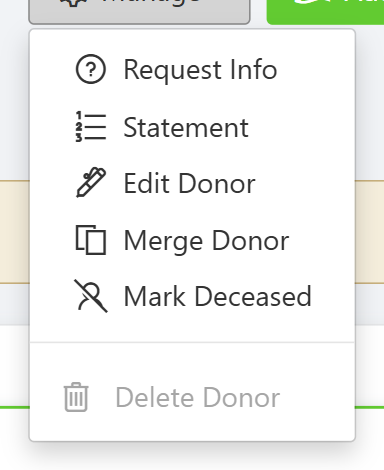
Click the Manage button (the cog button at the top-right of the donor's name).
Step 3: Mark deceased and confirm
In the dropdown, click Mark Deceased. ActiveDonor asks you to confirm; confirm to apply. A message reads "[donor name] has been marked as deceased."
📌 Note: Mark Deceased only appears in the Manage menu for donors who are not already marked deceased. If you don't see it, the donor may already be deceased (or you may not have the Manage Donors permission).
What changes when a donor is deceased
- The donor's profile shows a deceased styling.
- The donor can no longer be edited — opening the edit form shows "Cannot edit deceased donor."
- Mark Deceased disappears from the Manage menu (the donor is already deceased).
- The donor's receipts, certificates and history remain available for reporting and SARS compliance.
What this does not do
- It does not delete the donor, their receipts or their certificates — everything is preserved.
- It does not remove the donor from reports. Past giving still counts.
- It cannot be undone from the Manage menu — reactivating a deceased donor requires an administrator.
Common issues & solutions
| What you see | What it means | How to fix it |
|---|---|---|
| "Cannot edit deceased donor." | The donor is marked deceased, so the record is locked from editing. | This is expected. To make changes, ask an administrator to reactivate the donor first. |
| I marked the wrong donor | The record is preserved, not deleted, so nothing is lost. | Ask an administrator to reactivate the donor's status. |
| I don't see the Mark Deceased option | The donor is already deceased, or you don't have the permission. | Check the donor isn't already flagged; otherwise confirm you have the Manage Donors permission. |
FAQ
Does marking a donor deceased delete their receipts or certificates? No. All their giving history and certificates stay intact and keep appearing in reports. Only the record is locked from editing.
How do I undo marking a donor as deceased? It can't be reversed from the Manage menu. An administrator needs to reactivate the donor's status.
Why can't I edit this donor? The donor is marked deceased, which locks the record — you'll see "Cannot edit deceased donor." Reactivating requires an administrator.