LYBUNT (lapsed donors) report
In short: Open Reports, then Lapsed donors under the Donors panel. The report identifies donors who gave in the past but have stopped, using one of four definitions you pick from the Report dropdown. The page is titled Lapsed Donor Report. It requires the Advanced (2000 Donor) Plan and the View Reports permission.
Overview
LYBUNT stands for "Last Year But Unfortunately Not This year" — donors who gave last year but not this year. The Lapsed Donor Report helps you find supporters to win back. The page is titled Lapsed Donor Report and offers four lapsed-donor definitions, each with its own explanation on screen.
Before you start
You'll need:
- The View Reports permission.
- The Advanced (2000 Donor) Plan.
⚠️ Important: This report is only available on the Advanced (2000 Donor) Plan. On smaller plans the page shows Upgrade Required with the message "This report is only available on the Advanced (2000 Donor) Plan. Please upgrade your plan to access this report." On legacy or trial plans it shows a similar "not available on legacy or trial plans" message. To use the report, upgrade your subscription — see Your subscription and plan.
Running the report
Step 1: Open the report
Open Reports from the main navigation, then click Lapsed donors in the Donors panel.
Step 2: Choose the definition
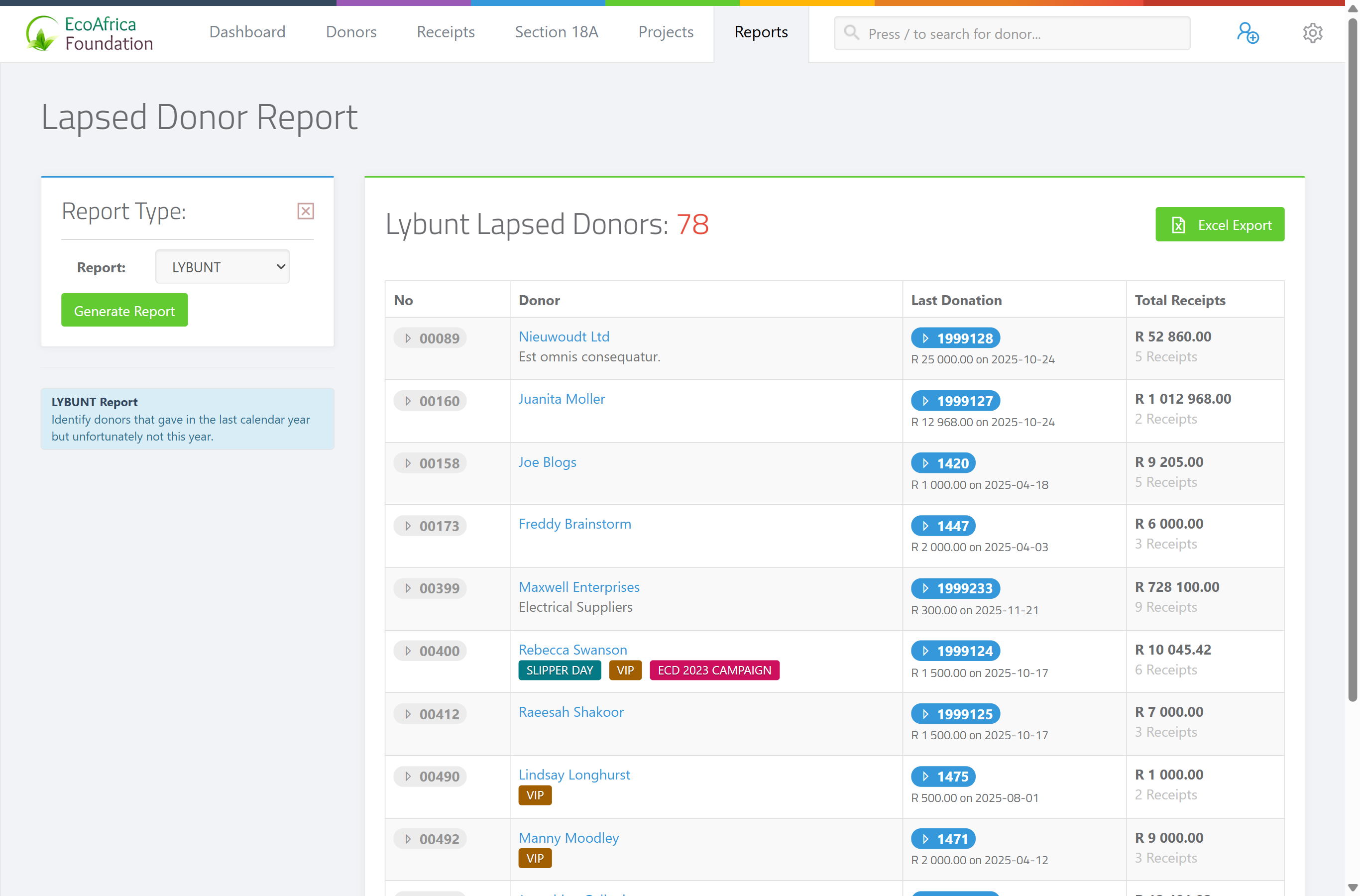
Choose the report definition from the Report dropdown in the sidebar (see the four options below). The page shows an explanation next to whichever one is selected.
Step 3: Generate
Click Generate Report.
Step 4: Export if needed
To download the results, click the Excel Export button above the table. The file downloads as ad_lapsed_report_<date>.xlsx.
The four report definitions
The Report dropdown offers four ways to define a lapsed donor:
- LYBUNT (default) — "Identify donors that gave in the last calendar year but unfortunately not this year." (Last Year But Unfortunately Not This year.)
- Last Financial Year — "Identify donors that have not given in the current financial year but gave in the preceeding financial year."
- Last 12 Months — "Identify donors that have not given in the last 12 months but gave in the preceeding 12 month period."
- SYBUNT — "Identify donors that gave in some (any) year but unfortunately not in this year." (Some Year But Unfortunately Not This year.)
The results table
A heading shows the report type and the count of lapsed donors. One row per lapsed donor, with these columns:
- No — the donor's ID number.
- Donor — the donor's name and tags.
- Last Donation — the donor's most recent receipt (number, amount and date).
- Total Receipts — the donor's total giving and receipt count.
If none match, the page shows: "🧾 No lapsed donors found." with the prompt "Modify the report type and try again".
What happens with large exports
If the report contains more than 500 donors, the Excel export is generated in the background and emailed to you when ready, rather than downloading immediately. You'll see a message saying the report will be emailed to your address. Smaller exports download straight away as ad_lapsed_report_<date>.xlsx.
Field reference
| Filter | Values |
|---|---|
| Report | "LYBUNT" (default), "Last Financial Year", "Last 12 Months" or "SYBUNT". |
| Rows | 10, 25, 50, 100 or 500 rows per page. |
Common issues & solutions
| What you see | What it means | How to fix it |
|---|---|---|
| Upgrade Required — "This report is only available on the Advanced (2000 Donor) Plan. Please upgrade your plan to access this report." | Your plan does not include this report (or you are on a legacy or trial plan). | Upgrade your subscription — see Your subscription and plan. |
| "🧾 No lapsed donors found." | No donor matched the selected definition. | Try a different definition from the Report dropdown. |
| The export didn't download; you got a message about it being emailed. | The result has more than 500 donors, so the export is queued and emailed when ready. | Wait for the email with the download link. |
| The Excel export hovers/spins and won't download. | The export is still building, or the page lost its connection. | Wait a few seconds; if it doesn't finish, refresh and try again. If it keeps failing, contact support. |
FAQ
What does LYBUNT mean? "Last Year But Unfortunately Not This year" — donors who gave last year but not this year.
What's the difference between LYBUNT and SYBUNT? LYBUNT is donors who gave last year but not this year. SYBUNT ("Some Year But Unfortunately Not This year") is donors who gave in any past year but not this year.
Why does the report say "Upgrade Required"? It needs the Advanced (2000 Donor) Plan. It isn't available on smaller, legacy or trial plans.
Can I export the lapsed donors list?
Yes — click Excel Export. If there are more than 500 donors, the file is emailed to you when ready; otherwise it downloads as ad_lapsed_report_<date>.xlsx.