Receipt methods (what they are and managing them)
In short: A receipt method records how a donation came in (Cash, a bank account, Goods in Kind, etc.). Manage them under Settings → Receipts → Receipt Methods with the Manage Settings permission. Attaching a CSV File Type to a method is what makes it usable for bulk CSV uploads.
Overview
A receipt method (sometimes called the receipt manner) records how a donation was received — for example Cash, a specific bank account ("FNB Ac #3823"), an online donation page, or Goods in Kind. Every receipt is tagged with a method, which lets you report on where money comes in. Receipt methods are also what link the CSV uploader to a file format: attaching a CSV File Type to a method is what makes it usable for bulk uploads.
Before you start
You'll need:
- The Manage Settings permission to add, edit or delete receipt methods.
Where receipt methods are managed
Step 1: Open Settings
From the gear/cog dropdown in the top navigation bar, choose Settings.
Step 2: Open the Receipts settings
In the Settings left-hand menu, click Receipts.
Step 3: Open the Receipt Methods tab
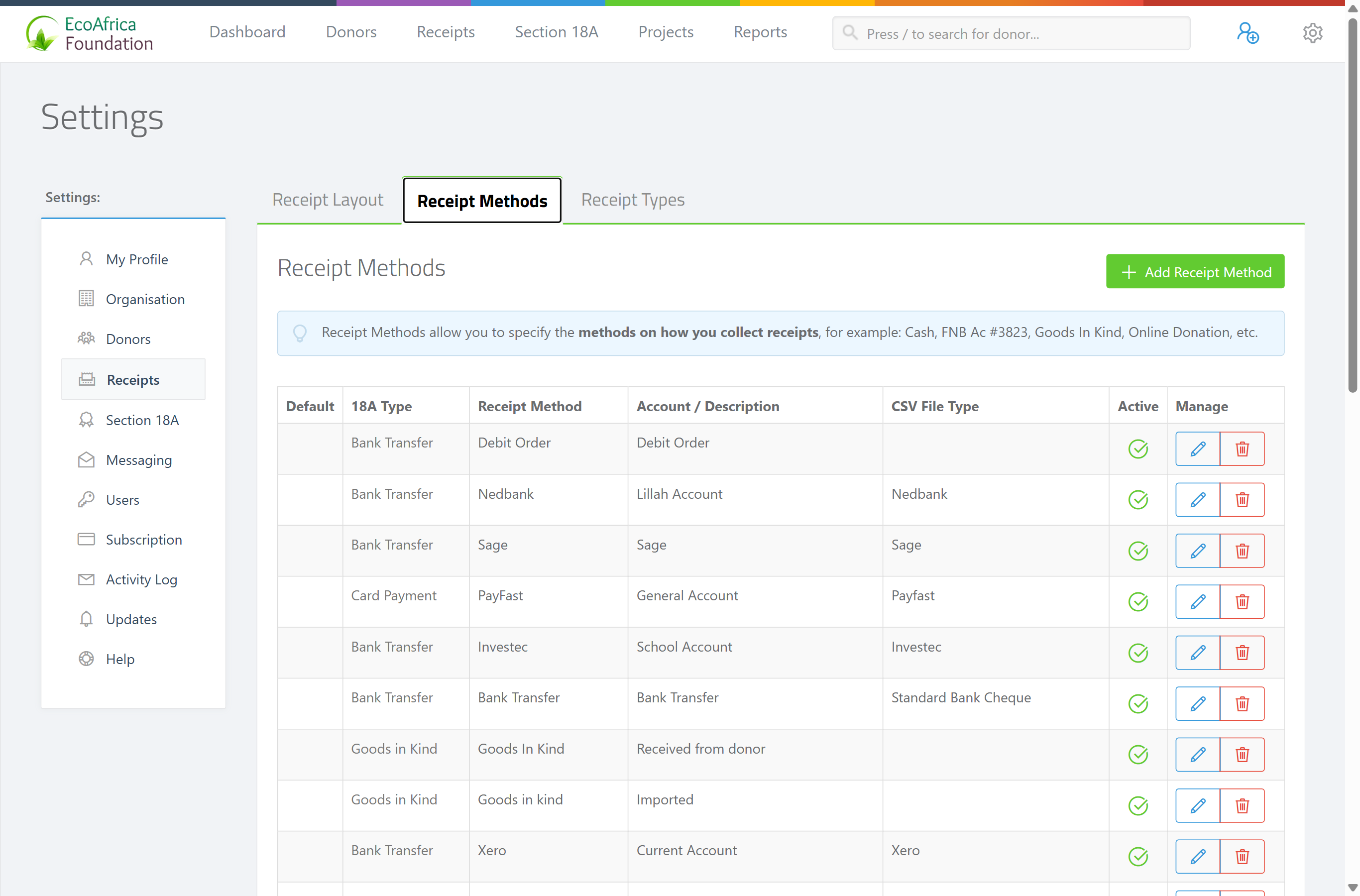
Click the Receipt Methods tab. The table lists each method with these columns: Default, 18A Type, Receipt Method (the name), Account / Description, CSV File Type, Active, and Manage.
Adding a receipt method
Step 1: Open the form
Click the green Add Receipt Method button (top right of the panel). A pop-up form opens.
Step 2: Complete the fields
Complete the fields — see the field reference below.
Step 3: Save
Click Add Receipt Method to save. A confirmation appears ("{name} receipt method has been added.").
Editing a receipt method
In the method's row, click the blue pencil (edit) icon in the Manage column, change the fields, and click Update Receipt Method.
Activating / deactivating (publishing)
The Active checkbox controls whether a method can be used. If a method is no longer in use but has historical receipts attached, untick Active rather than deleting it — this keeps it off the capture screens while preserving its receipts.
The default method
One method can be the Default Receipt Method, pre-selected when you capture a single receipt. Tick Set as Default Receipt Method on the one you want. You can't delete the default method — make another method the default first.
Deleting a receipt method
In the method's row, click the red trash (delete) icon in the Manage column and confirm.
You cannot delete a method if:
- it is the default method ("Cannot delete default receipt method."), or
- it has receipts attached — the message tells you how many receipts used it and suggests you Unpublish (deactivate) it instead.
How receipt methods link to CSV upload
Attaching a CSV File Type to a receipt method is what makes it available in the CSV Receipt Uploader. On the form, the CSV File Type dropdown defaults to -- NONE --; leave it there if the method isn't used for CSV upload. The uploader only lists active methods that have a CSV File Type matching one of the built-in formats. So to bulk-upload a bank statement, first set up a receipt method for that bank account with the matching CSV File Type. See Setting up CSV receipt upload (the CSV receipt method) and Supported bank and CSV file formats.
18A Donation Type mapping
The 18A Donation Type dropdown maps a receipt method to a Section 18A donation nature, used when issuing certificates in bulk. It defaults to -- Not Mapped --. The available values are: Cash, Cash Deposit, Bank Transfer, Card Payment, Cheque Deposit, and Goods in Kind.
Choosing Goods in Kind marks receipts captured with this method as in-kind donations; for those, a description of the goods becomes mandatory at receipt capture (required for Section 18A).
Field reference
| Field | Required? | What to enter |
|---|---|---|
| Name | Yes (max 40 characters) | The method's label, e.g. Cash, FNB Business, Online Donation. |
| Description | Yes (max 40 characters) | Account number or other detail, e.g. Head Office or an account number. Shown as Account / Description in the list. |
| CSV File Type | Optional | The built-in format for bulk upload. Leave on -- NONE -- if the method isn't used for CSV upload. |
| Active | Recommended | Tick to make the method selectable. |
| Set as Default Receipt Method | Optional | Pre-selects this method when capturing a single receipt. |
| 18A Donation Type | Optional | One of the six values above, mapping the method to a Section 18A donation nature. Defaults to -- Not Mapped --. |
Common issues & solutions
| What you see | What it means | How to fix it |
|---|---|---|
| "Cannot delete default receipt method." | The method you're deleting is the default. | Make another method the default first, then delete this one. |
| "X receipts were received using {method}. You can Unpublish this receipt method instead." | The method has receipts attached and can't be deleted. | Untick Active to retire it instead, keeping its receipts. |
| A Server Error when opening or saving the receipt method form | The form lists CSV File Types from your set-up file formats; if that set-up isn't in place the page can fail. | Make sure the CSV file-format set-up exists before attaching a CSV File Type — see Setting up CSV receipt upload (the CSV receipt method). If it persists, contact ActiveDonor support. |
| My method doesn't appear in the CSV uploader | The method is inactive, or its CSV File Type isn't a real format. | Confirm it's Active and that its CSV File Type is set to a real format (not -- NONE --). |
FAQ
What's the difference between a receipt method and a receipt type? A receipt method is how the money came in (Cash, a bank account). A receipt type is the kind of receipt (Donation, Sale). See Receipt types.
How do I add a new bank account as a receipt method? Go to Settings → Receipts → Receipt Methods, click Add Receipt Method, enter the name and description, set a CSV File Type if you'll bulk-upload that account, and save.
I get a Server Error when adding a receipt method — what's wrong? The form populates its CSV File Type list from your CSV file-format set-up. Make sure that set-up is in place first — see Setting up CSV receipt upload (the CSV receipt method). If it keeps happening, contact support with the method name you're adding.
Why isn't my method showing in the CSV uploader? It must be Active and have a CSV File Type set to a real format (not -- NONE --).
What does the 18A Donation Type field do? It maps the method to a Section 18A donation nature (Cash, Cash Deposit, Bank Transfer, Card Payment, Cheque Deposit, or Goods in Kind) for bulk certificate issuance. Choosing Goods in Kind makes a description of the goods mandatory when capturing receipts with that method.
Related
- Receipt types
- Setting up CSV receipt upload (the CSV receipt method)
- Supported bank and CSV file formats
- Creating a receipt
- Receipt fields and the Section 18A toggle
- Receipt layout settings
- Payment methods report
Need a hand?
If a receipt method won't save or save throws a Server Error, contact ActiveDonor support with the method name and the CSV File Type you were trying to set.