Audit log
In short: Open Reports, then User activity (the User Activity page at /reports/audit-log). It shows who created, updated or deleted donors, receipts, certificates and other records, for the last 30 days. You need the Manage Settings permission — without it the card doesn't appear.
Overview
The audit log records who did what in your ActiveDonor account — every donor, receipt, certificate and other record that was created, updated or deleted, and by which user. The page is titled User Activity. Use it to answer "who changed this?", "who deleted that?" and "what happened recently?".
Before you start
You'll need:
- The Manage Settings permission (not just View Reports).
⚠️ Important: Without the Manage Settings permission, the User activity card does not appear on the Reports dashboard and the page is not accessible. Ask an administrator to grant Manage Settings — see Roles and permissions.
Opening the audit log
Step 1: Open the page
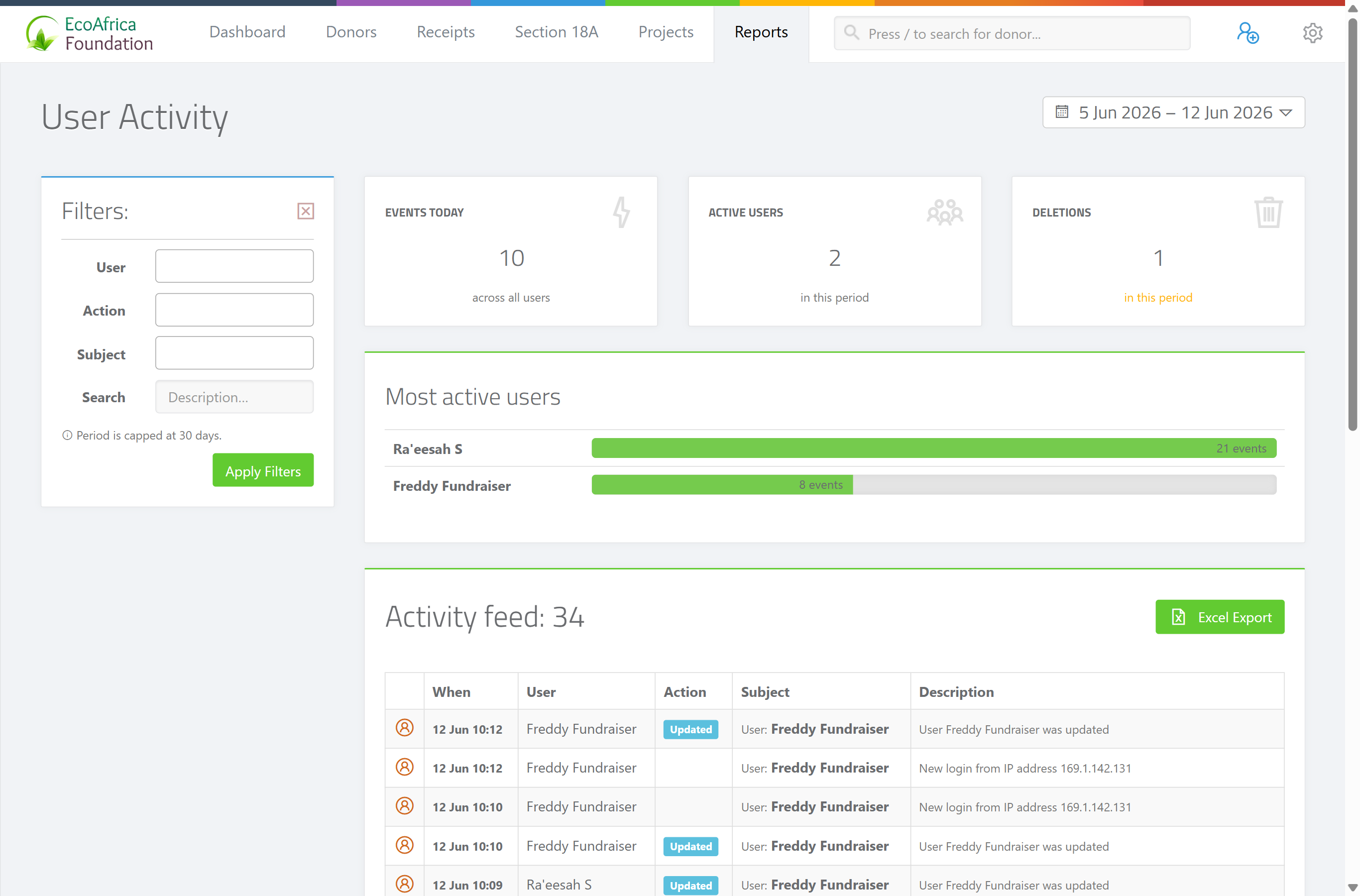
Open Reports from the main navigation, then in the Email & Tasks panel click User activity (or go to /reports/audit-log).
Step 2: Choose a date range
Choose a date range with the date range picker at the top right (see the named ranges in Field reference). The default is the last 7 days.
Step 3: Filter and submit
Apply any sidebar filters (User, Action, Subject, Search) and submit.
Step 4: Export if needed
To download the filtered activity as a spreadsheet, click the Excel Export button. The file downloads as ad_audit_log_report_<date>.xlsx.
The 30-day limit
📌 Note: The audit log can only show activity from the last 30 days. The date range picker is capped at 30 days, and the default view is the last 7 days. Older activity is not available through this page.
The summary cards
Three figures are shown at the top:
- Events Today — the number of recorded actions today.
- Active Users — how many users were active in the period.
- Deletions — how many delete actions occurred in the period.
A Most active users block also highlights the users with the most activity.
The activity feed
Each row represents one recorded action, with these columns:
- (an icon indicating the action type)
- When — when the action happened.
- User — who did it.
- Action — Created, Updated or Deleted.
- Subject — the kind of record affected (for example Donors, Receipts, Certificates).
- Description — a short description of the change.
If there is no activity in the period, the page shows: "No activity in this period."
Field reference
| Filter | Values |
|---|---|
| User | One or more users, to see only their activity. |
| Action | "Created", "Updated" or "Deleted". |
| Subject | The record type: Donors, Receipts, Certificates, Projects, Reminders, Information requests (donor updates), Contacts or Users. |
| Search | Free-text search of the description. |
| Date range (top right) | Today, Yesterday, Last 7 days (default), Last 14 days, Last 30 days. Cannot exceed 30 days. |
What this does not do
- It does not show activity older than 30 days. There is no way to view older history from this page.
- It is not the same as the settings Activity log — see Activity log (a separate settings page covering account-level activity).
Common issues & solutions
| What you see | What it means | How to fix it |
|---|---|---|
| The User activity card is missing from the dashboard. | You do not have the Manage Settings permission. | Ask an administrator to grant Manage Settings — see Roles and permissions. |
| You can't find an old action. | The audit log only covers the last 30 days. | There is no way to view older history from this page; check sooner next time. |
| "No activity in this period." | No recorded actions fell in the selected range and filters. | Widen the date range (up to 30 days) or clear the User / Action / Subject filters. |
| The Excel export hovers/spins and won't download. | The export is still building, or the page lost its connection. | Wait a few seconds; if it doesn't finish, refresh and try again. If it keeps failing, contact support. |
FAQ
Who changed (or deleted) this record? Open User activity, filter by Subject (for example Receipts) and Action (for example Deleted), and search the description. Each row shows the user and time.
How far back does the audit log go? The last 30 days only. Older activity isn't available from this page.
Why can't I see the User activity card? You need the Manage Settings permission. Ask an administrator to grant it.
Can I export the activity history?
Yes — click Excel Export. The file downloads as ad_audit_log_report_<date>.xlsx.
Is this the same as the Activity log in Settings? No — they're separate. This is the reports-side User Activity page; the settings Activity log is a different page.