Donor history report
In short: Open Reports, choose the Donor history report, pick year (the last five years) or month (one chosen year), optionally filter by a donor tag, and the report shows each donor's giving per period with a total. Export it to Excel with the export button.
Overview
The Donor history report shows how much each donor has given over time, so you can see giving trends per donor at a glance. View it by year across the last five years, or month by month for a single year, filter it by donor tag, and export it to Excel.
Before you start
You'll need:
- The View Reports permission.
Amounts are in South African Rand, and each row ends with a Total for that donor.
📌 Note: The report only lists donors who actually gave in the period shown. Donors with no donations in that period are left out.
Running the report
Step 1: Open the report
Open Reports from the top navigation bar and choose the Donor history report.
Step 2: Choose how to group the figures
Set history by to one of:
- year — one column per year, covering the current year and the four previous years (five years in total).
- month — one column per month (January to December) for a single chosen year.
Step 3: Choose a year for the monthly view
If you chose month, select the year you want to break down month by month.
Step 4: Filter by tag (optional)
Optionally filter by a donor tag so the report only includes donors in that category (for example VIP or Volunteer).
Step 5: Read the results
The report lists each donor with their giving per period and a total. It also shows the number of donors and the combined amount.
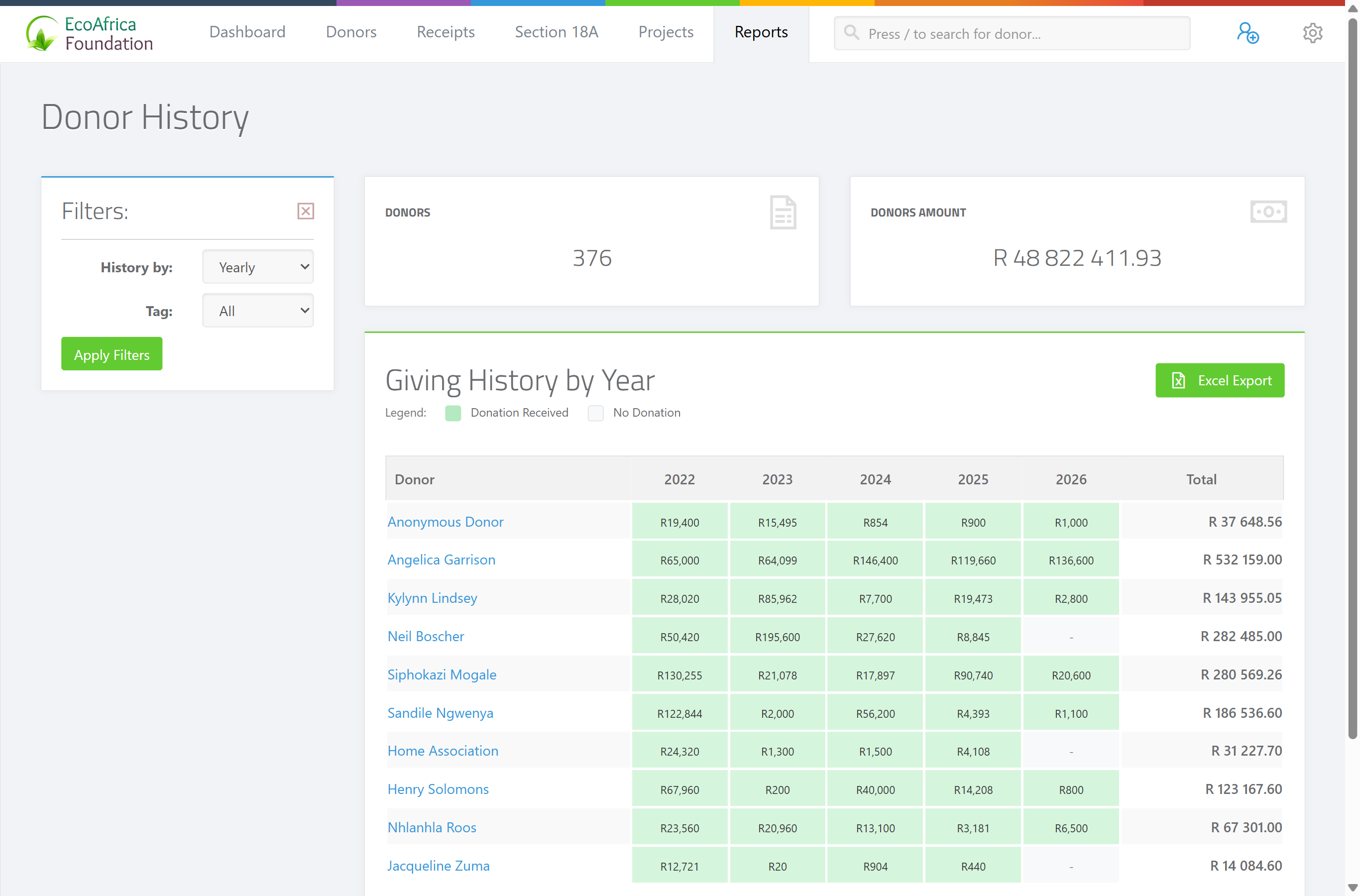
What the columns mean
- Donor No — the donor's number in ActiveDonor.
- Donor — the donor's full name (for individuals and estates) or organisation name (for entities).
- The period columns — the amount that donor gave in each year (yearly view) or each month (monthly view).
- Total — the donor's total giving across the periods shown.
Exporting the report
Click the export button to download the report as an Excel spreadsheet. The file is named ad_donor_giving_history_report_ followed by the date and time.
What this does not do
- It does not list donors who gave nothing in the period — only donors with giving in that period appear.
- The year view is fixed to the current year and the four previous years; it does not let you pick an arbitrary range.
- The month view needs a year — without one, there's nothing to break down.
Field reference
| Filter | Options | Default |
|---|---|---|
| History by | year, month | year |
| Year | A specific year | (required for the monthly view) |
| Tag | Any donor tag | (none) |
Common issues & solutions
| What you see | What it means | How to fix it |
|---|---|---|
| A donor is missing from the report | The report only lists donors who gave in the selected period. | A donor with no donations in that period won't appear — this is expected. Check a period where they gave. |
| The monthly view is empty | The monthly view needs a year to report on. | Choose a year for the monthly breakdown. |
| The tag filter removed most donors | A tag filter narrows the report to donors carrying that tag. | Clear the tag filter to see all donors. |
FAQ
How do I see how much a donor has given over time? Run the Donor history report. The year view shows the last five years; the month view breaks one year into months.
Why is a donor not showing in the report? The report only includes donors who gave in the period shown. If they gave nothing in that period, they're left out.
Can I export the donor giving history to Excel?
Yes. Click the export button; the file is named ad_donor_giving_history_report_ plus the date and time.
How many years does the yearly view cover? The current year plus the four previous years — five years in total.