Projects report
In short: Open Reports, then Project performance under the Donations panel. The report shows how much each project has raised over the date range you pick (top right), against its target. The page is titled Projects Report and defaults to the last 30 days. You need the View Reports permission.
Overview
The Projects Report shows fundraising by project (campaign or fund). The page is titled Projects Report. Each row is a project with the amount raised in the date range, the number of receipts, the target and the end date. The report remembers your chosen date range during your login session.
Before you start
You'll need:
- The View Reports permission.
- Projects (and their targets) set up in your projects area — see Managing projects and Allocating receipts to projects (receipts must be allocated to a project to count towards it).
Running the report
Step 1: Open the report
Open Reports from the main navigation, then click Project performance in the Donations panel.
Step 2: Choose the date range
Set the date range with the date range picker at the top right (see Field reference). Receipts raised within this range count towards each project. The default is the last 30 days.
Step 3: Set filters and apply
Apply any sidebar filters and click Apply Filters.
Step 4: Export if needed
To download the results, click the Excel Export button above the table. The file downloads as ad_project_report_<date>.xlsx.
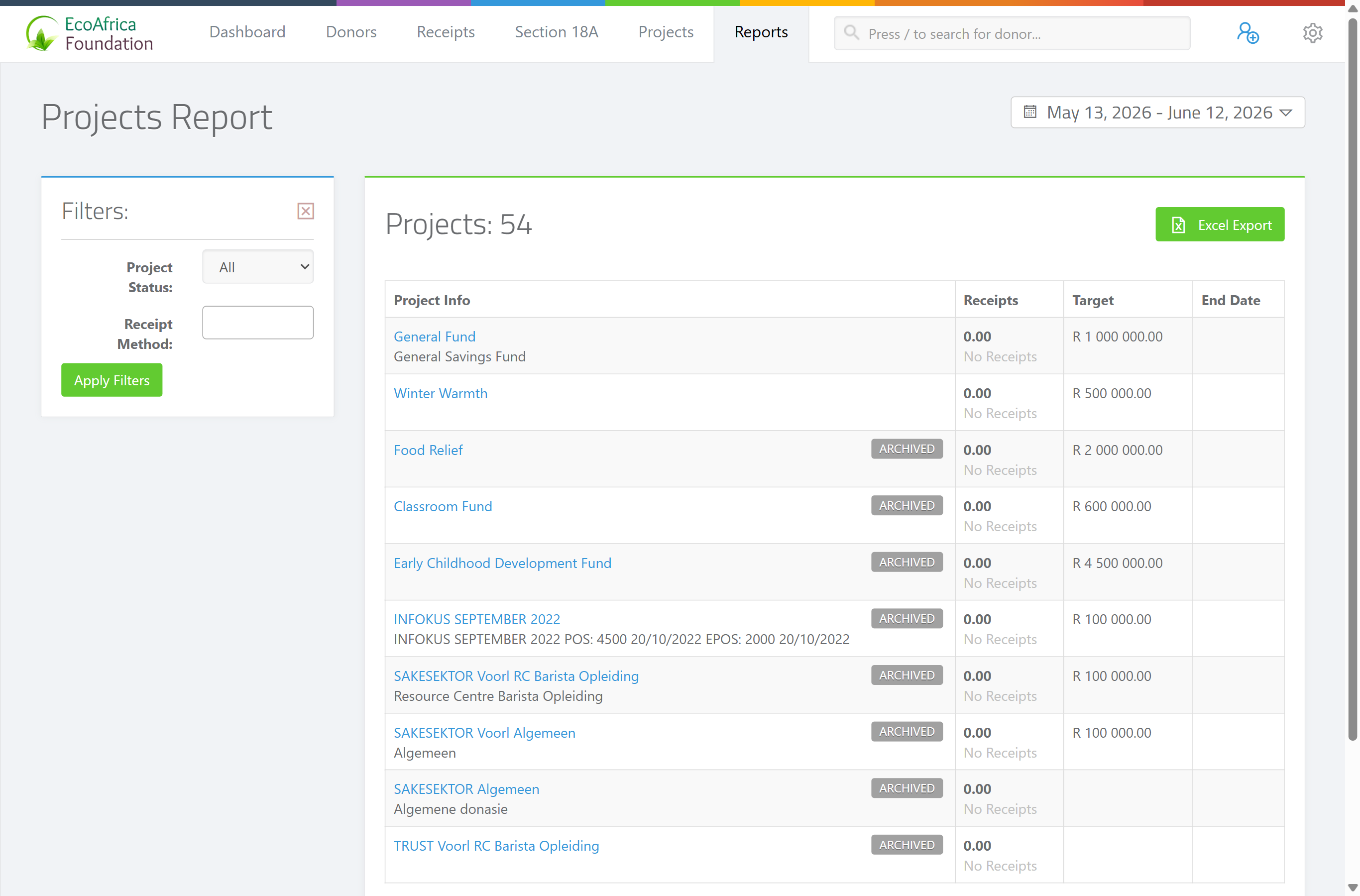
The results table
A heading above the table reads Projects: followed by the number of projects shown. One row per project, with these columns:
- Project Info — the project name and description. Archived projects show an ARCHIVED label.
- Receipts — the total raised and the number of receipts in the date range (or No Receipts if none).
- Target — the project's target amount, if one is set.
- End Date — the project's end date.
If no projects match, the page shows: "🧾 No projects found." with the prompt "Modify the filters or date range and try again".
Field reference
| Filter | Where | Values |
|---|---|---|
| Project Status | Sidebar | "All", "Active" or "Archived". |
| Receipt Method | Sidebar | One or more payment methods to count towards each project. |
| Date range | Top right | Today, Yesterday, Last 7 Days, Last 30 Days (default), This Month, Last Month, Last 3 Months, Year to Date. "Year to Date" starts from your charity's configured financial year start date. |
| Rows | Bottom of table | 10, 25, 50, 100 or 500 rows per page. |
Common issues & solutions
| What you see | What it means | How to fix it |
|---|---|---|
| A project shows No Receipts. | No receipts were allocated to that project within the selected date range. | Widen the date range, or check the project's allocations — see Allocating receipts to projects. |
| "🧾 No projects found." | No projects matched the status filter / date range. | Set Project Status to "All", or widen the date range. |
| The Excel export hovers/spins and won't download. | The export is still building, or the page lost its connection. | Wait a few seconds; if it doesn't finish, refresh and try again. If it keeps failing, contact support. |
FAQ
How much has each project or campaign raised? Open Project performance and set the date range. Each row shows the amount raised and how it compares with the project's target.
Why does a project show "No Receipts"? No receipts were allocated to it within the selected date range. Widen the range or check the project's allocations.
Can I export the project figures?
Yes — click Excel Export. The file downloads as ad_project_report_<date>.xlsx.
What does "Year to Date" start from? Your charity's configured financial year start date, not 1 January.