Donor retention report
In short: Open Reports, then Donor retention under the Donors panel. The report compares the donors who gave in the current period against those who gave in the immediately preceding period of the same length, and reports retention and churn. The page is titled Donor Retention Report. It requires the Advanced (2000 Donor) Plan and the View Reports permission.
Overview
The Donor Retention Report measures how well you keep donors giving from one period to the next. The page is titled Donor Retention Report. Choose a comparison length (30, 90, 180 days or 12 months) and the report shows your retention rate, churn rate, first-time donors and a list of the donors who churned between the two windows.
Before you start
You'll need:
- The View Reports permission.
- The Advanced (2000 Donor) Plan.
⚠️ Important: This report is only available on the Advanced (2000 Donor) Plan. On smaller plans the page shows Upgrade Required with the message "This report is only available on the Advanced (2000 Donor) Plan. Please upgrade your plan to access this report." On legacy or trial plans it shows a "not available on legacy or trial plans" message instead. To use the report, upgrade your subscription — see Your subscription and plan.
Running the report
Step 1: Open the report
Open Reports from the main navigation, then click Donor retention in the Donors panel.
Step 2: Choose the comparison length
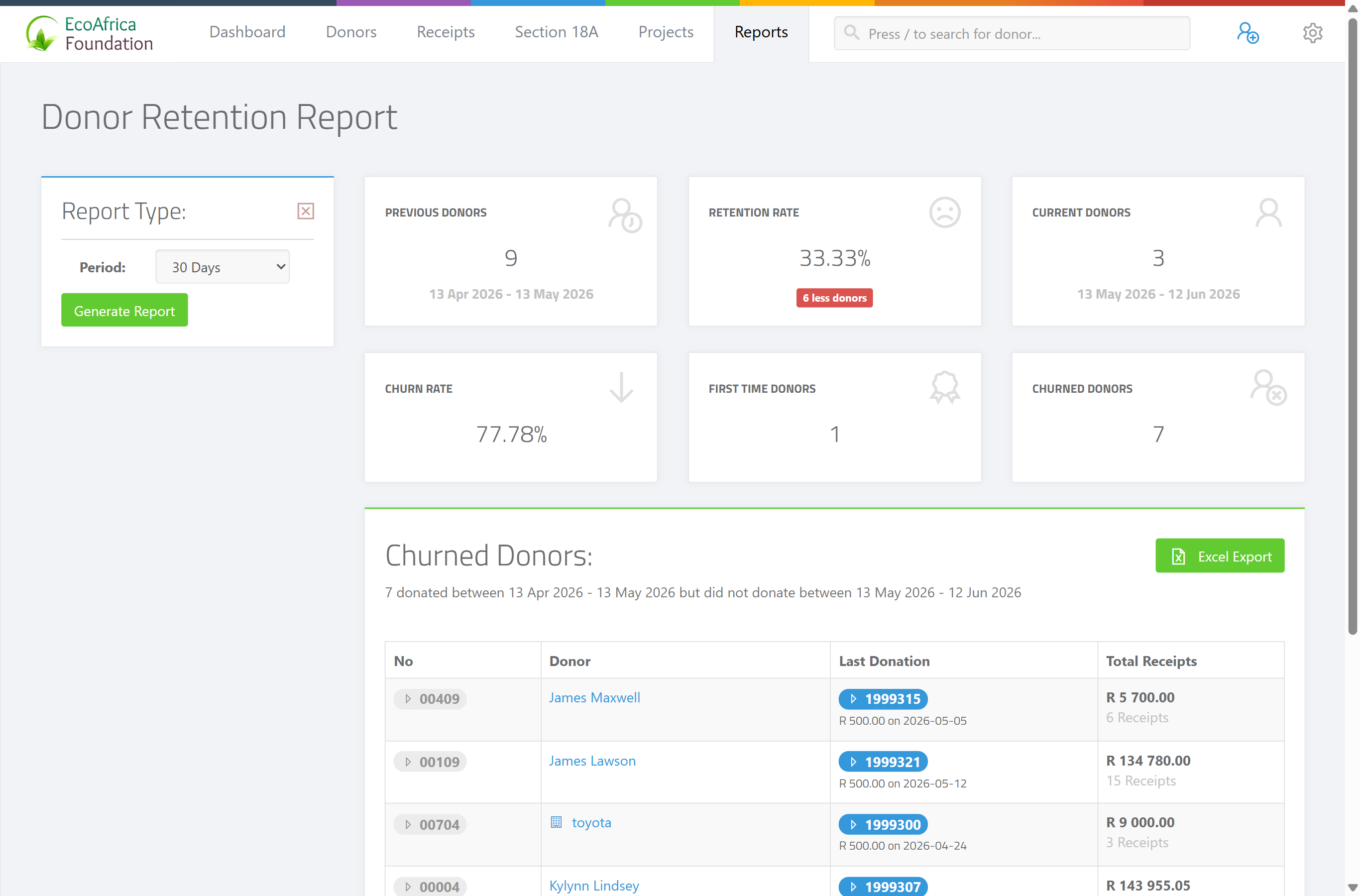
Choose the length from the Period dropdown in the sidebar: 30 Days, 90 Days, 180 Days or 12 Months.
Step 3: Generate
Click Generate Report.
Step 4: Export if needed
To download the churned-donor list, click the Excel Export button. The file downloads as ad_churn_report_<date>.xlsx.
How the periods work
The report defines two equal-length, back-to-back windows:
- The current period is the chosen length up to today (for example the last 30 days).
- The previous period is the same length immediately before that (for example the 30 days before the last 30 days).
Donors who gave in the previous period but not in the current period are counted as churned.
The summary cards
Six cards summarise the comparison:
- Previous Donors — donors who gave in the previous period (with that period's date range shown).
- Retention Rate — current-period donors as a percentage of previous-period donors. A green smile icon appears at 100% or more; a frown below 100%. A label shows how many more or fewer donors gave.
- Current Donors — donors who gave in the current period (with the date range shown).
- Churn Rate — churned donors as a percentage of previous-period donors.
- First time donors — donors whose first-ever gift fell in the current period.
- Churned Donors — the number of previous-period donors who did not give in the current period.
The churned donors table
A section headed Churned Donors: lists the donors who lapsed between the two periods, with an explanation of the exact date ranges. Each row has these columns:
- No — the donor's ID number.
- Donor — the donor's name and tags.
- Last Donation — their most recent receipt (number, amount and date).
- Total Receipts — their total giving and receipt count.
What happens with large exports
If more than 500 donors would be exported, the Excel file is generated in the background and emailed to you when ready, rather than downloading immediately. Smaller exports download straight away as ad_churn_report_<date>.xlsx.
Field reference
| Filter | Values |
|---|---|
| Period | "30 Days" (default), "90 Days", "180 Days" or "12 Months". |
| Rows | 10, 25, 50, 100 or 500 rows per page. |
Common issues & solutions
| What you see | What it means | How to fix it |
|---|---|---|
| Upgrade Required — "This report is only available on the Advanced (2000 Donor) Plan. Please upgrade your plan to access this report." | Your plan does not include this report (or you are on a legacy or trial plan). | Upgrade your subscription — see Your subscription and plan. |
| Retention Rate shows a frown / below 100%. | Fewer donors gave in the current period than in the previous one. | This is informational — use the Churned Donors list to plan win-back outreach. |
| The export didn't download; you got a message about it being emailed. | The churned list has more than 500 donors, so the export is queued and emailed when ready. | Wait for the email with the download link. |
| The Excel export hovers/spins and won't download. | The export is still building, or the page lost its connection. | Wait a few seconds; if it doesn't finish, refresh and try again. If it keeps failing, contact support. |
FAQ
What's the difference between retention and churn? Retention is the share of last period's donors who gave again this period. Churn is the share who did not. They are two sides of the same comparison.
What counts as the "previous period"? The same length as the current period, immediately before it. For 30 Days, it's the 30 days before the last 30 days.
Why does the report say "Upgrade Required"? It needs the Advanced (2000 Donor) Plan. It isn't available on smaller, legacy or trial plans.
Can I export the churned donors?
Yes — click Excel Export. If there are more than 500 donors the file is emailed to you; otherwise it downloads as ad_churn_report_<date>.xlsx.