Tracking IT3(d) submissions
In short: After you submit an IT3(d) file, open IT3D Management → IT3(d) Submissions to see what SARS sent back. Each row shows a status (e.g. ALL ACCEPTED, Partial Upload, Structure Failure). Click a submission to see its rejected, warning and accepted certificates, and to download the submission and SARS response files.
Overview
After you submit an IT3(d) file to SARS (the file declaring your issued Section 18A certificates), ActiveDonor tracks what SARS sends back so you can see whether the file was accepted, accepted with warnings, partially accepted, or rejected. This article explains the IT3(d) Submissions tab, the statuses you'll see, and how to read a submission's result. Fixing rejected or warned certificates is covered in Fixing IT3(d) submission errors.
Where to look
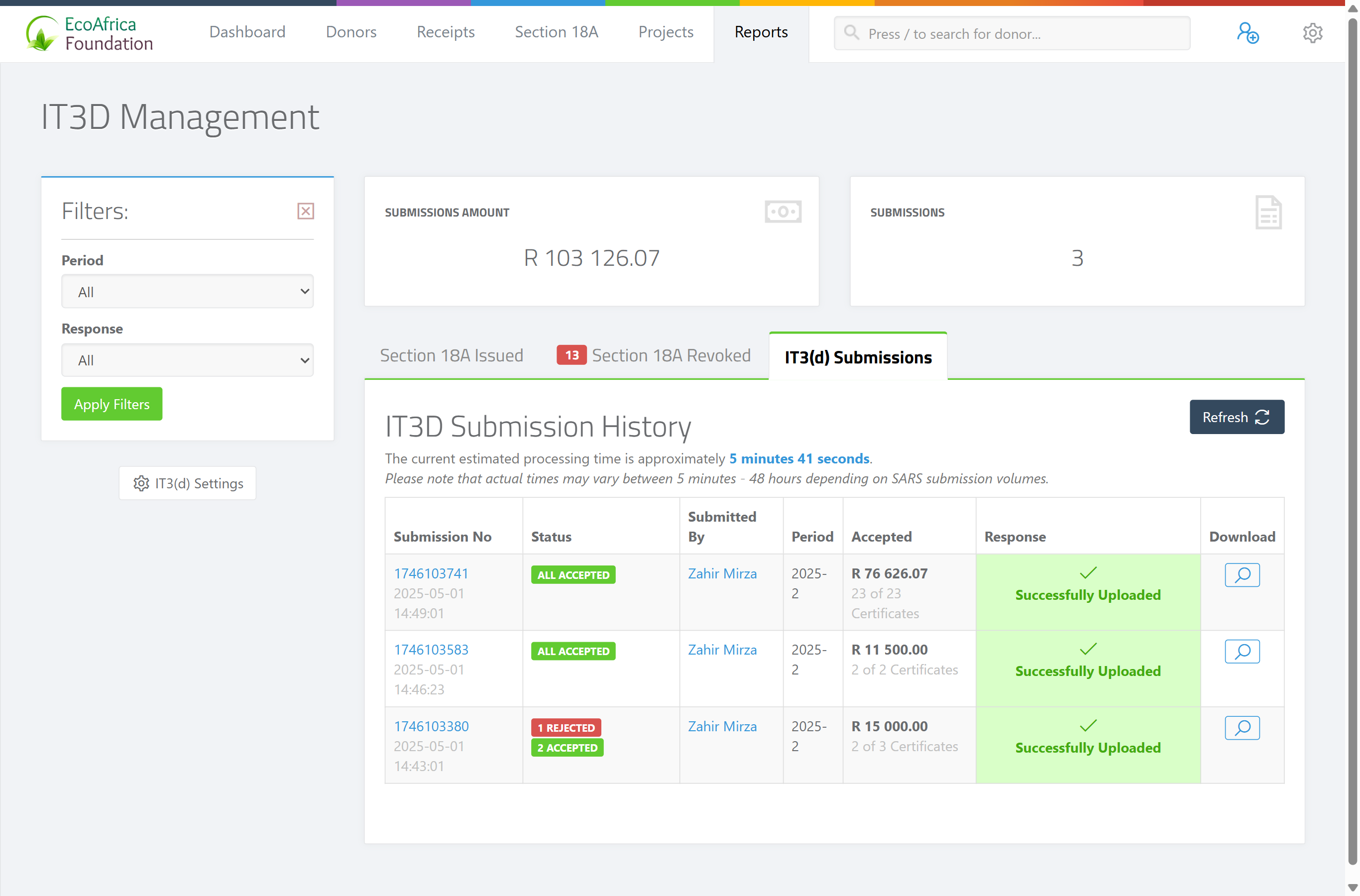
Open IT3D Management and go to the IT3(d) Submissions tab. It lists every submission with two summary stats at the top: Certificates Submitted (the total number of certificates across the listed submissions) and Submissions Amount (their total rand value). Each row is one file you submitted, headed IT3D Submission History.
The list columns are: Submission No, Status, Submitted By, Period, Accepted, Response, and a Download action.
How long SARS takes
A note on the page reads: "The current estimated processing time is approximately [time]. Please note that actual times may vary between 5 minutes - 48 hours depending on SARS submission volumes." While any submission is still awaiting a response, the page refreshes itself every minute. You can also click Refresh.
What the statuses mean
Each submission shows a status (e.g. ⏳ WAITING FOR SARS, 🟢 ALL ACCEPTED, 🟡 Accepted with Warnings, 🟠 Partial Upload, 🔴 STRUCTURE FAILURE, ⚪ NOT TRACKED) telling you what SARS did with the file. For the full table of every status, what each means, and what to do, see What each IT3(d) submission status means.
The Accepted column shows the total amount and "N of M Certificates" accepted.
Opening a submission
Click a submission's number to open it. The summary panel shows the Response, Submission No, Submitted At and Submitted By, with buttons to download the IT3D Submission file and the IT3D Response file from SARS.
Within an accepted/partial submission, three tabs split the certificates by outcome:
- Rejected (N) — certificates SARS rejected (see Fixing IT3(d) submission errors).
- Warnings (N) — certificates accepted with warnings.
- Success (N) — certificates SARS accepted. Each row shows "Accepted".
For a Null Submission you see "This null submission has been accepted by SARS with response code R003." For a Structure Failure you see "File Invalid Structure — Please resubmit all certificates - contact support if you need assistance."
Filtering submissions
Use the left filters to narrow the list:
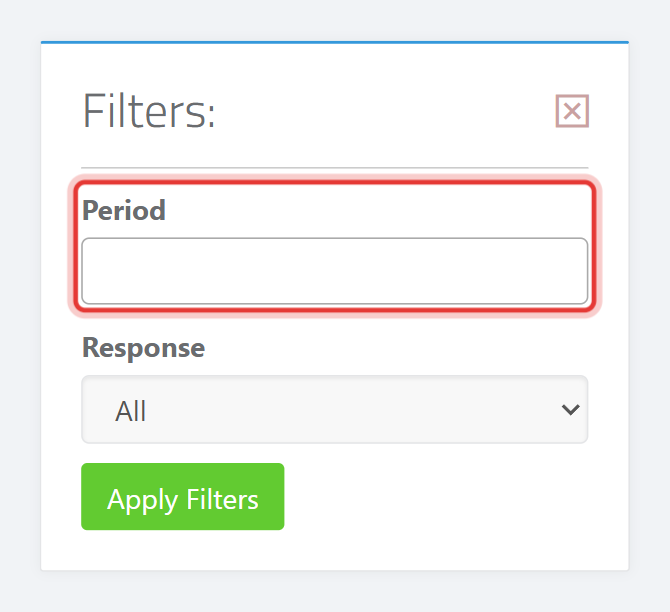
- Period — a multi-select of tax periods. It defaults to All periods, and you can pick one or several (for example
2026-2and2025-8) to compare. The list only offers periods you've actually submitted for, so every period you've ever submitted — including the current one — appears here. - Response — All, Partial Upload, Accepted, Accepted with Warnings, or Structure Failure.
Revocations in the list
When you revoke certificates and submit that to SARS, the revocation appears as its own row, visually set apart so you can spot it:
- Its Submission No starts with R and carries a ↩️ undo icon, with the REVOCATION label in the Status column.
- The row is tinted cyan to distinguish it from ordinary submissions.
- Its Accepted amount is shown in red as a negative figure, because a revocation subtracts from your period totals — so the Submissions Amount stat reflects revocations correctly.
A revocation that SARS accepts shows Successfully Uploaded like any other accepted file. For what the REVOCATION status means, see What each IT3(d) submission status means.
Downloading the files
For each submission you can download the submission file (what was sent) and, once SARS replies, the response file (what SARS returned). These are useful for your records and for support if something went wrong.
Common issues & solutions
| What you see | What it means | How to fix it |
|---|---|---|
| A submission is stuck on WAITING FOR SARS. | SARS hasn't replied yet (5 min–48 hours). | The page refreshes itself; check back later. |
| NO RESPONSE RECEIVED after 24 hours. | SARS hasn't replied in the expected window. | Download the submission file for your records and contact support if it persists. |
| The status shows NOT TRACKED. | A non-ActiveDonor submitter sent the file, so ActiveDonor can't read SARS's response. | Check the status on SARS eFiling. |
| STRUCTURE FAILURE. | The whole file was rejected. | Resubmit all certificates; contact support if needed — see Fixing IT3(d) submission errors. |
| Some certificates are under Rejected. | SARS rejected those certificates. | Fix and resubmit them — see Fixing IT3(d) submission errors. |
FAQ
How long does SARS take to respond? Anywhere from 5 minutes to 48 hours depending on SARS volumes. The page auto-refreshes while it waits.
What does a particular status mean (Partial Upload, NOT TRACKED, REVOCATION…)? See What each IT3(d) submission status means for the full table of statuses and what to do about each.
Why is one row cyan with a negative amount? That's a revocation — a submission (number starting with R) that revokes certificates you'd previously declared. It's shown in cyan with a negative amount because it subtracts from your period totals. See the Revocations in the list section above.
Where do I download what SARS sent back? Open the submission and use the IT3D Response download. You can also download the original IT3D Submission file.