Managing projects
In short: Open Projects, click Add Project, enter a Project Name (at least 4 characters), and click Create Project. Your plan limits how many active (non-archived) projects you may have — when you hit the limit, archive a project you don't need or upgrade. A project with receipts allocated to it can't be deleted; archive it instead.
Overview
A project in ActiveDonor is a fund, cause, programme or campaign that a donation is allocated to — for example "Building Fund", "Food Drive" or "Education Programme". Every receipt must be allocated to one or more projects, so projects let you track how much each cause has raised, set fundraising targets, and run focused reports. This article covers creating, editing, archiving, unarchiving and deleting projects. For attaching a donation to a project, see Allocating receipts to projects.
Before you start
You'll need:
- The Manage Projects permission to add, edit, archive or delete projects.
- To reach projects from Projects in the top navigation bar.
- Room within your plan's active-project allowance. Your subscription plan limits how many active (non-archived) projects you may have. The Create Project screen shows your current active project count against your plan's allowance, and you cannot unarchive or add a project beyond that limit (you'll be told to upgrade).
⚠️ Important: When you're at your plan's active-project limit, adding or unarchiving a project is blocked with "You have reached the maximum number of active projects. Please upgrade to add more projects." You can either archive an active project you no longer need (freeing a slot) or upgrade your plan.
📌 Note: Parent projects (sub-projects) are only available on plans with a donor allowance of 2 000 or more, and not on legacy plans. On smaller or legacy plans the Parent Project dropdown is disabled and shows the tooltip "This feature is not available on your plan."
Creating a project
Step 1: Open Projects
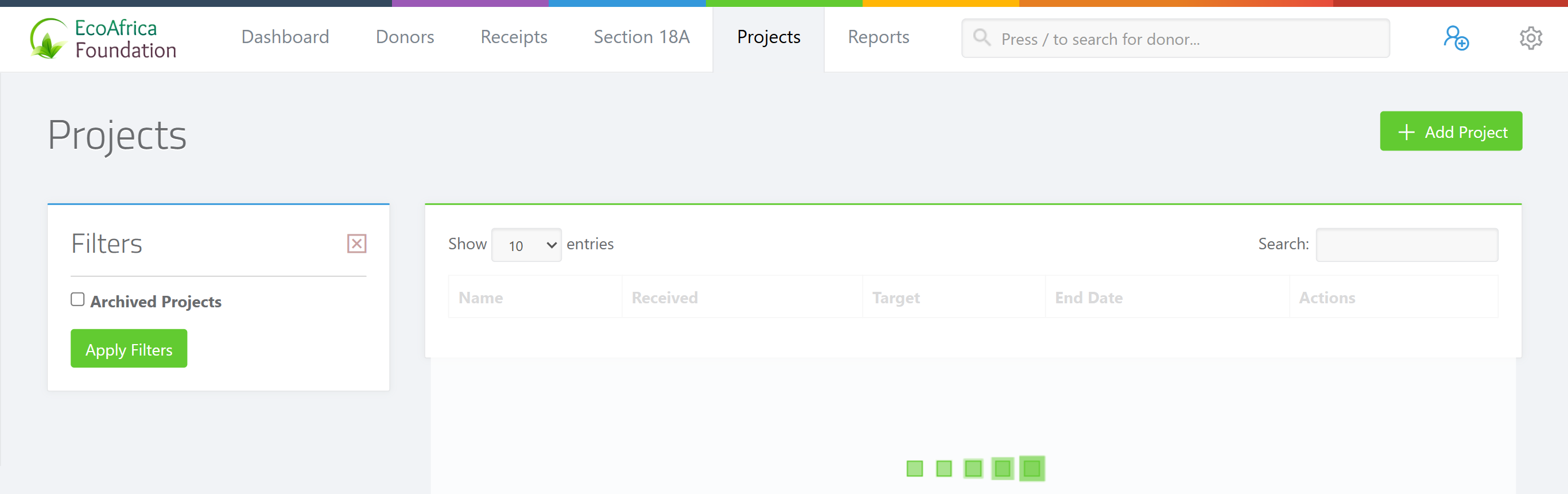
Click Projects in the top navigation bar.
Step 2: Start a new project
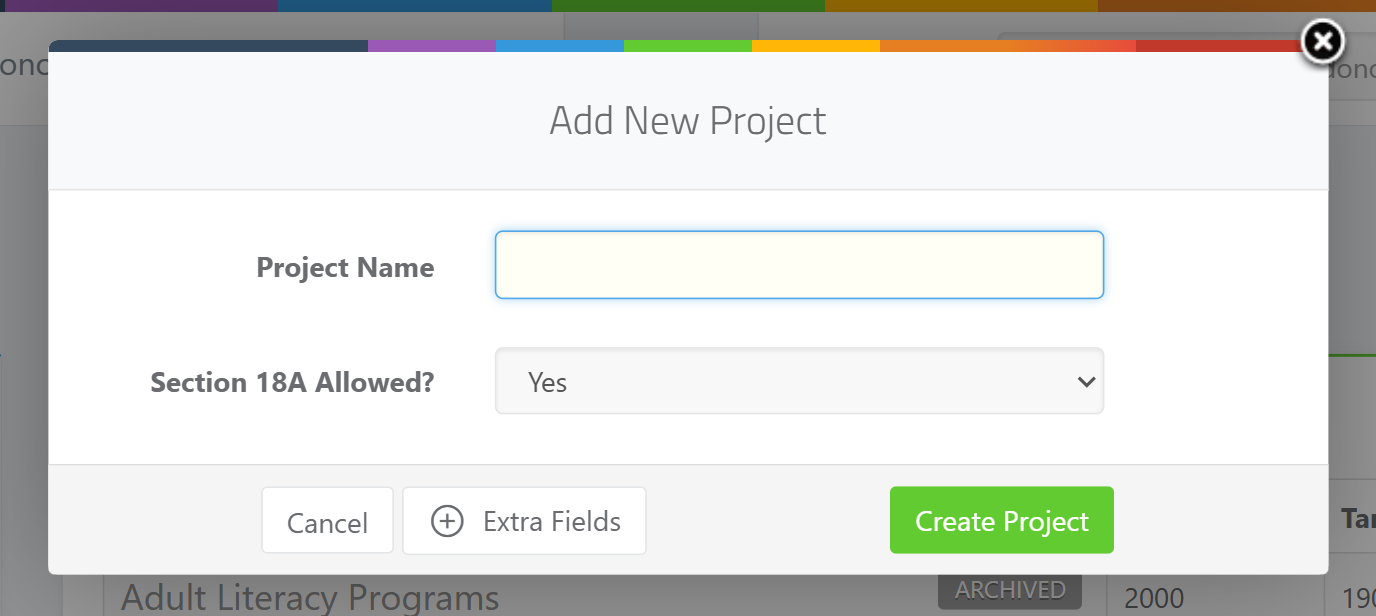
Click Add Project (top right). On a brand-new account with no projects yet, the screen instead shows an "Organize Your Impact" welcome panel with a Create Your First Project button — click that.
Step 3: Enter the project name
Enter a Project Name (required, minimum 4 characters).
Step 4: Set extra fields (optional)
Open Extra Fields (the link at the bottom-left of the form) to set the Parent Project, Receipt E-mail Template, Target Amount, Start Date, End Date and Description.
Step 5: Set Section 18A eligibility
Set Section 18A Allowed? to Yes or No (defaults to Yes). This controls whether donations allocated to this project can be issued with a Section 18A tax certificate.
Step 6: Create
Click Create Project. A confirmation message "{project name} project has been created." appears and the project list refreshes.
Editing a project
Step 1: Open the project's edit form
On the Projects list, click a project row to open it, then choose Manage > Edit Project (top right of the project page).
Step 2: Change and save
Change any field and click Save. A confirmation "{project name} project has been updated." appears.
Archiving and unarchiving a project
Archiving hides a project from the default list without deleting its history, and frees an active-project slot.
Step 1: Archive the project
You can archive in two ways:
- On the Edit form, tick Archive Project and save; or
- Use the archive action on the project (this shows "{project name} project has been archived.").
Step 2: See archived projects
To see archived projects, open the Filters panel on the left of the Projects list, tick Archived Projects, and click Apply Filters.
Step 3: Unarchive (bring it back)
To bring an archived project back, untick Archive Project on its edit form and save — but only if you are still within your plan's active-project limit. Otherwise you'll see "You have reached the maximum number of active projects. Please upgrade to add more projects."
Deleting a project
Step 1: Open the project and delete
Open the project and use the delete action.
Step 2: Note when deletion is blocked
A project can only be deleted if it has no sub-projects and no receipts allocated to it. Otherwise you'll see "{project name} can not be deleted since it has sub-projects." or "{project name} can not be deleted since it has receipts allocated to it." In those cases, archive the project instead — archiving keeps its history and removes it from the default list.
💡 Tip: Most of the time you don't want to delete a project that has donations against it — archiving is the right choice, because it preserves the receipts and reporting history while tidying up your active list.
Parent projects and sub-projects
A project can have a parent project, creating a two-level hierarchy. On the Projects list a sub-project's name is shown as "Parent ▸ Child". A parent project's totals (Target and Received) roll up the totals of all its sub-projects, and the parent's page shows a per-sub-project breakdown for the selected date range. A project that already has sub-projects cannot itself be moved under another parent (the Parent Project dropdown is disabled). Parent/sub-projects require a plan with a donor allowance of 2 000 or more and are not available on legacy plans.
The project page
Opening a project shows, for a selectable date range (the date picker is top right):
- Recent Donations — a chart of donation totals by day (up to the 12 most recent days with activity).
- Target vs Received — the project's target amount against the total allocated.
- Top Donors — the 10 donors who gave the most to this project in the period.
- Sub-project breakdown — totals for each child project (parent projects only).
- A list of the individual receipts allocated to the project, with donor name, amount, date and receipt number.
Use Manage > Export Project to download an Excel (.xlsx) workbook of the project's donations for the selected period. The file is named like ad_{project_name}_{date}.xlsx.
Receipt e-mail template
If your organisation has more than one receipt message template, the project form shows a Receipt E-mail Template dropdown. When a receipt is allocated to a single project, the e-mail used to send that receipt to the donor defaults to the template chosen here, letting you tailor the wording per cause. (Manage templates under Settings — see Message and email templates.)
What this does not do
- It does not let you exceed your plan's active-project limit — adding or unarchiving beyond it is blocked until you archive another project or upgrade.
- It does not let you delete a project that has sub-projects or allocated receipts — archive it instead.
- It does not offer parent/sub-projects on small or legacy plans.
- Archiving does not delete a project's history — it only hides it from the default list.
Field reference
| Field | Required? | Notes |
|---|---|---|
| Project Name | Required | Minimum 4 characters. |
| Parent Project | Optional | Plan-gated (donor allowance 2 000+, non-legacy). Disabled if the project already has sub-projects. |
| Receipt E-mail Template | Optional | Only shown if more than one receipt template exists. |
| Target Amount | Optional | Numeric, minimum 1. |
| Start Date | Optional | Format dd/mm/yyyy; must be before End Date. |
| End Date | Optional | Format dd/mm/yyyy; must be after Start Date. |
| Description | Optional | Free text. |
| Section 18A Allowed? | Required | Yes (default) or No. Controls Section 18A eligibility for donations on this project. |
| Archive Project | Optional | Checkbox, only on existing projects. Tick to archive, untick to unarchive. |
Common issues & solutions
| What you see | What it means | How to fix it |
|---|---|---|
| "You have reached the maximum number of active projects. Please upgrade to add more projects." | You're at your plan's active-project limit (this also blocks unarchiving). | Archive an active project you no longer need to free a slot, or upgrade your plan. See Your subscription and plan. |
| "{project name} can not be deleted since it has receipts allocated to it." | The project has donations allocated to it, so deleting it would lose that history. | Archive the project instead of deleting it. |
| "{project name} can not be deleted since it has sub-projects." | The project is a parent with child projects under it. | Move or delete the sub-projects first, or simply archive the parent instead. |
| The Parent Project dropdown is greyed out, tooltip "This feature is not available on your plan." | Sub-projects aren't available on your plan, or this project already has children. | Upgrade to a plan that supports parent/sub-projects (donor allowance 2 000+, non-legacy), or remove its children. |
| You can't find a project in the list. | It may be archived. | Open the Filters panel, tick Archived Projects, and click Apply Filters. |
FAQ
How do I add / create a project? Click Projects, then Add Project, enter a Project Name of at least 4 characters, and click Create Project.
I get "You have reached the maximum number of active projects. Please upgrade" — what now? You're at your plan's limit for active projects. Either archive an active project you no longer need (which frees a slot) or upgrade your plan — see What do I do when it says "You have reached the maximum number of active projects"? for the steps.
Why can't I delete my project? A project can only be deleted if it has no sub-projects and no receipts allocated to it. If it has donations against it, ActiveDonor blocks the delete to protect your history. Archive it instead — open the project's Edit form, tick Archive Project, and save.
How do I archive a project? On the project's Edit form, tick the Archive Project checkbox and save (or use the archive action on the project). It disappears from the default list but keeps its history.
How do I unarchive a project? View archived projects (Filters panel > Archived Projects > Apply Filters), open the project's Edit form, untick Archive Project, and save — as long as you're within your active-project limit.
Why is the Parent Project dropdown greyed out? Parent/sub-projects need a plan with a donor allowance of 2 000 or more and aren't on legacy plans, or this project already has sub-projects of its own. The tooltip reads "This feature is not available on your plan."
Does archiving delete the project's donations? No. Archiving only hides the project from the default list — the receipts, totals and reporting history are all kept.
Related
- What do I do when it says "You have reached the maximum number of active projects"?
- Allocating receipts to projects
- Creating a receipt
- Receipt fields and the Section 18A toggle
- Message and email templates
- Projects report
- Section 18A certificates explained
- Your subscription and plan
Need a hand?
If you've hit your active-project limit and aren't sure whether to archive or upgrade, archiving a project you no longer actively fundraise for is usually the quickest fix. For plan changes, see Your subscription and plan or contact ActiveDonor support.