Uploading your own certificate PDF
In short: Open the certificate, drag your signed PDF into the dropzone, and it becomes the file ActiveDonor stores, downloads and emails — in place of the system-generated one. Re-syncing or editing the certificate clears the uploaded file and regenerates the system PDF, so re-upload afterwards if needed.
Overview
Instead of using the certificate PDF that ActiveDonor generates, you can upload your own PDF for a certificate — for example a copy you printed, signed by hand, and scanned, or one signed digitally in another tool. Once uploaded, your PDF becomes the file ActiveDonor stores, downloads and emails for that certificate, in place of the system-generated one.
Before you start
You'll need:
- The Manage Certificates permission.
- The PDF ready — the signed/final version of that specific certificate.
- The certificate to already exist (you upload onto an existing certificate; you don't create a new one this way).
Uploading the PDF
Step 1: Open the certificate
Open the certificate (the Section 18A Certificate # page).
Step 2: Find the dropzone
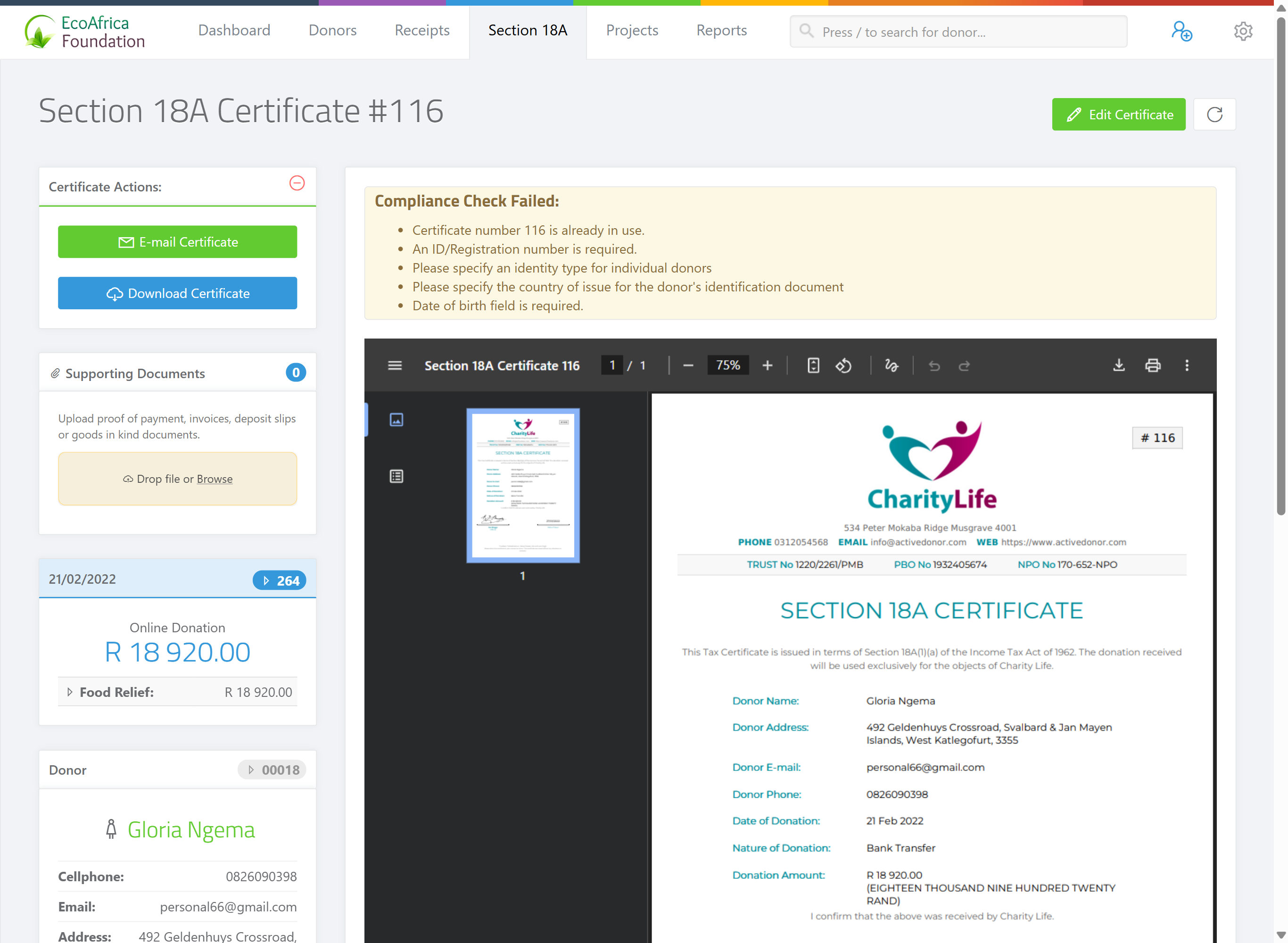
Find the upload area — a drag-and-drop dropzone in the certificate actions panel.
Step 3: Upload
Drag your PDF into the dropzone, or click it to choose the file. ActiveDonor uploads the file and confirms "Upload Successfull". The uploaded PDF is now the active file for the certificate.
What changes after you upload
- Download and E-mail Certificate now use your uploaded PDF, not the generated one. In fact the E-mail Certificate button becomes available once a finalised (uploaded) file is in place.
- The system-generated PDF is kept in the background, but the uploaded file takes precedence.
Removing an uploaded PDF
To go back to the system-generated certificate, delete the uploaded file from the certificate. ActiveDonor removes your uploaded PDF and falls back to the generated one. You can then refresh the certificate to regenerate a fresh system PDF if needed — see Refreshing a certificate and removing SAMPLE text.
When the uploaded PDF is cleared automatically
⚠️ Important: Some actions clear an uploaded PDF and regenerate the system version:
- Re-syncing all of a donor's certificates after correcting their details clears uploaded PDFs and regenerates each one — see Regenerating certificates after changing details.
- Editing the certificate regenerates the system PDF.
If you had a hand-signed PDF uploaded and then do one of these, re-upload your signed file afterwards.
Upload vs automatic electronic signature
If your goal is simply to have a signature on every certificate, it's usually easier to set up an electronic signature so ActiveDonor signs them automatically, rather than uploading each one by hand — see Electronic signatures on certificates. Upload your own PDF when you need a wet-ink signature, a counter-signature, or a certificate finalised outside ActiveDonor.
Common issues & solutions
| What you see | What it means | How to fix it |
|---|---|---|
| The upload didn't work. | The file type may be wrong, or it's large. | Make sure the file is a PDF and try again. Very large files may take a moment. |
| My uploaded PDF disappeared. | It was cleared by a re-sync or edit of the certificate. | Re-upload it. |
| The donor received the generated PDF, not my signed one. | The signed file didn't finish uploading before you emailed, or it was cleared. | Confirm the upload, then email again. |
FAQ
Can I use my own signed certificate instead of ActiveDonor's PDF? Yes — upload it onto the certificate and it replaces the generated PDF for downloads and emails.
Why did my uploaded PDF vanish? Re-syncing a donor's certificates or editing the certificate clears the uploaded file and regenerates the system PDF. Re-upload afterwards.
Should I upload each one, or set up auto-signing? For a signature on every certificate, auto-signing is easier — see Electronic signatures on certificates. Upload manually when you need a wet-ink or externally finalised copy.
What format does the upload accept? A PDF — the signed/final version of that specific certificate.