Sending batch emails to donors
In short: Open Reports, then Bulk emails (the Email Management page at /reports/emails). Choose Section 18A or Receipts, tick the documents in To Send, click Send, check the compose window and send. There's a 30-second pause before sending starts. You need the View Reports permission and donors must have an email on file.
Overview
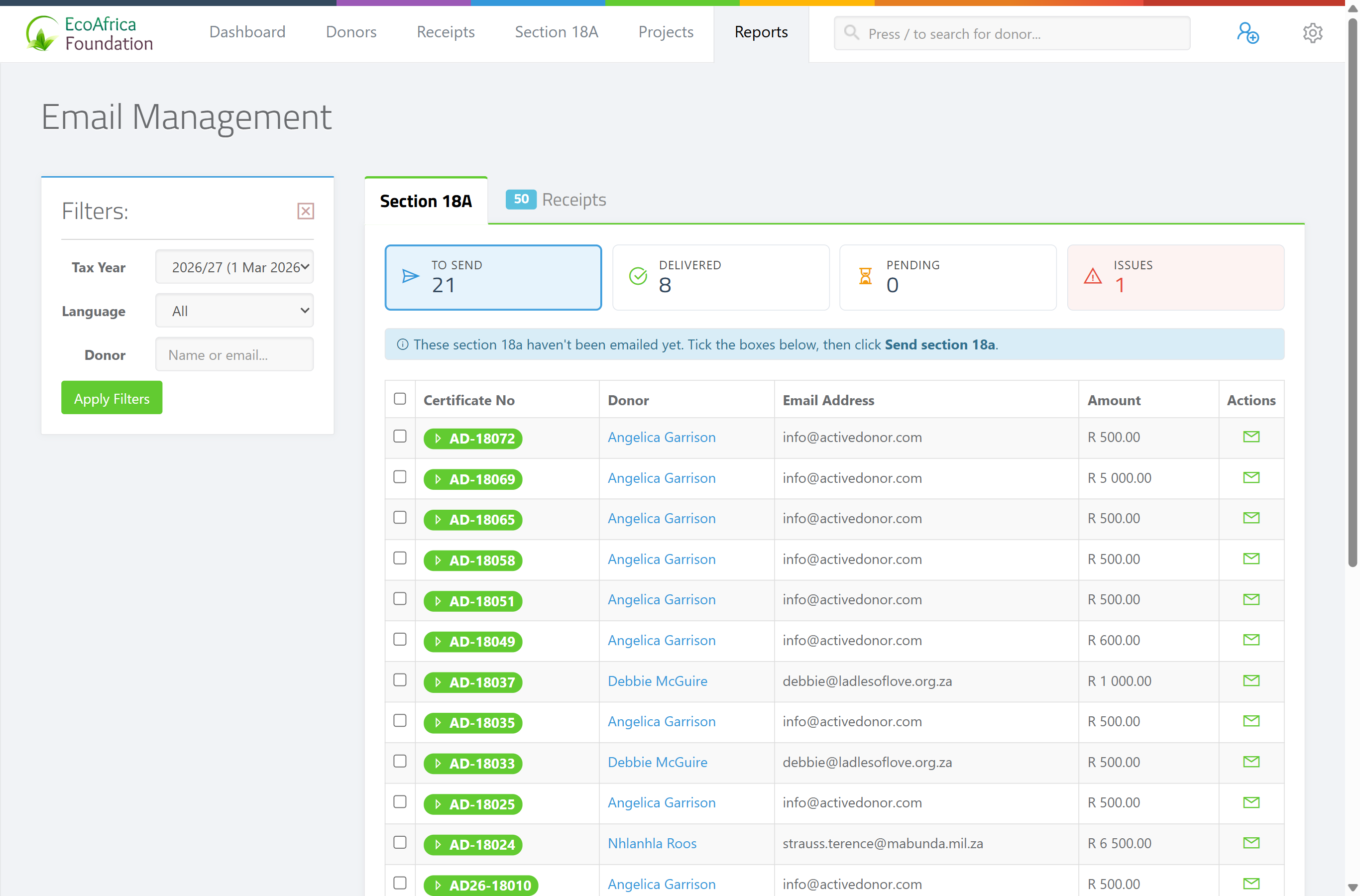
The Email Management page lets you email many Section 18A certificates or receipts to their donors in one batch, instead of sending them one at a time. The page is titled Email Management. It also tracks which emails were delivered and which had problems (bounces and spam complaints).
Before you start
You'll need:
- The View Reports permission.
- Donors with an email address on file. Donors with no email — or whose address has bounced or marked you as spam — are skipped and flagged.
- The documents to send must already exist: certificates must be issued (see Emailing certificates to donors) and receipts must be captured (see Printing, downloading and emailing a receipt).
Choosing what to send
At the top of the page are two tabs for the document type:
- Section 18A — emails Section 18A tax certificates. The document column is headed Certificate No.
- Receipts — emails receipts. The document column is headed Receipt No.
Switching tabs reloads the page showing that document type's To Send list. Each tab shows a counter of how many documents are waiting to be sent.
The four states
Below the tabs are four state pills. Click one to switch the list:
- 🟡 To Send — documents not yet emailed. This is the only state where you can select rows and send a batch.
- 🟢 Delivered — documents whose email was successfully delivered.
- 🟡 Pending — emails sent and awaiting delivery confirmation. A row waiting longer than an hour is flagged Slow; otherwise it shows Waiting.
- 🔴 Issues — documents that could not be delivered because the donor's address Bounced or the donor sent a spam Complaint. These are grouped by donor.
Sending a batch
Step 1: Open the page and choose the type
Open Reports, then click Bulk emails (or go to /reports/emails). Choose the Section 18A or Receipts tab.
Step 2: Make sure To Send is selected
Make sure the To Send pill is selected — it's the only state you can send from.
Step 3: Filter the list
Use the Filters in the sidebar to narrow the list (see Field reference), then click Apply Filters.
Step 4: Select documents
Tick the checkbox on each document you want to send, or tick the header checkbox to select all on the page. A bar appears at the bottom showing {n} selected.
Step 5: Open the compose window
Click the Send {n} section 18A (or Send {n} receipts) button. A compose window opens.
Step 6: Check the email
Set an optional CC address, check the Subject and Text (body), and pick a template from the dropdown at the top if you have more than one. Optionally:
- Click Send test to me to email yourself a single sample using the first selected document, so you can check the template before sending the whole batch.
- Expand Preview as recipient to see the first selected document rendered with its real data.
Step 7: Send
Click Send.
The 30-second pause before sending
After you click Send, the batch does not go out immediately. A countdown appears reading "Sending in {n}s…" for 30 seconds, then the batch begins and the page reloads.
⚠️ Important: There is no longer a Cancel button during this countdown. Once you've clicked Send, you cannot abort the batch — the 30-second pause still happens, but plan your batch before sending.
How fast the batch sends
Batches are sent at roughly 450 emails per hour (about one every 8 seconds) to protect deliverability. After sending, a confirmation tells you how many were queued and the approximate completion time, for example: "{n} receipts queued — sending at ~450/hour, completing around {time}." Documents you just queued are temporarily hidden from the To Send list so you don't send them twice while the queue catches up.
Skipped documents
If any selected documents cannot be sent, the compose window warns you before you send, for example "{n} skipped (no email or donor suppressed)." Skipped documents are not sent; fix the donor's email and they return to the To Send list.
Fixing delivery issues
On the Issues pill, donors whose emails bounced or who complained are listed and grouped by donor:
- Bounced — update the donor's email address; the document moves back to To Send once saved and ActiveDonor will try again.
- Complaint — the donor flagged your email as spam. Do not email them again.
Field reference
| Filter | Values |
|---|---|
| Tax Year | The tax year to scope documents to. If the selected year has no documents, the page automatically falls back to the most recent year that does. |
| Language | The donor's language (only shown if your donors have languages set). "All" or a specific language. |
| Donor | Free-text search by donor name or email address. |
| Rows | 10, 25, 50 or 100 rows per page. |
Common issues & solutions
| What you see | What it means | How to fix it |
|---|---|---|
| A document is in To Send but its checkbox is disabled and the email column shows Missing. | The donor has no email address on file, so the document can't be sent. | Add an email to the donor (there's an "Add email" link on the row) and it becomes selectable. |
| "{n} skipped (no email or donor suppressed)." | Some selected documents have no donor email, or the donor's address is suppressed (bounced/complaint). | Fix the donor's email; skipped documents return to the To Send list. |
| There's no Cancel button during the "Sending in {n}s…" countdown. | Mid-countdown cancelling was removed. The 30-second pause still applies, but you can't abort once you've clicked Send. | Plan your batch before sending; check the selection and template first. |
| An email sat in Pending for over an hour and is flagged Slow. | The delivery confirmation is delayed. | Wait; check the Issues pill later in case it bounced. |
| A donor appears under Issues with a Bounced reason. | Their email address bounced and is suppressed. | Use the donor's record to update their email; the document returns to To Send once saved. |
| A donor appears under Issues with a Complaint reason. | The donor flagged your email as spam. | Do not email them again. |
FAQ
How do I email all my receipts (or certificates) at once? Open Bulk emails, choose the Receipts or Section 18A tab, make sure To Send is selected, tick the documents (or select all), click Send, check the compose window and send.
Can I check the email before sending the whole batch? Yes — use Send test to me to email yourself one sample, or expand Preview as recipient to see the first document with real data.
Can I cancel a batch after clicking Send? No. There's a 30-second pause before sending starts, but the Cancel button has been removed, so you can't abort once you've clicked Send.
How long does a big batch take? Emails go out at about 450 per hour (one every ~8 seconds). The confirmation message shows the approximate completion time.
Why is a donor skipped or in the Issues list? They have no email on file, or their address bounced or marked you as spam. Fix the email to move bounced documents back to To Send; never re-email someone who complained.
How do I track which emails were delivered? Use the state pills: Delivered shows successful sends, Pending shows ones awaiting confirmation, and Issues shows bounces and complaints.
Related
- Emailing certificates to donors
- Printing, downloading and emailing a receipt
- Message and email templates
- Audit log
- The Reports dashboard
Need a hand?
If a batch won't send or documents stay stuck in Pending, contact ActiveDonor support with the document type (certificates or receipts), the tax year, and an example certificate or receipt number.