Receipt types
In short: A receipt type labels the kind of receipt (e.g. Donation or Sale). ActiveDonor ships with Donation (the default) and Sale; you can add your own under Settings → Receipts → Receipt Types with the Manage Settings permission.
Overview
A receipt type distinguishes between different kinds of receipts you issue — for example Donation, Sale, or types you create yourself such as Raffle, Tithe, Zakaat or Fête. Every receipt is tagged with a type, which helps you categorise and report on income. Out of the box, ActiveDonor includes two types: Donation (set as the default) and Sale. You can add as many of your own as you need.
Before you start
You'll need:
- The Manage Settings permission to add, edit or delete receipt types.
Where receipt types are managed
Step 1: Open Settings
From the gear/cog dropdown in the top navigation bar, choose Settings.
Step 2: Open the Receipts settings
In the Settings left-hand menu, click Receipts.
Step 3: Open the Receipt Types tab
Click the Receipt Types tab. The table lists each type with these columns: Default, Receipt Type (the name), Active, and Manage.
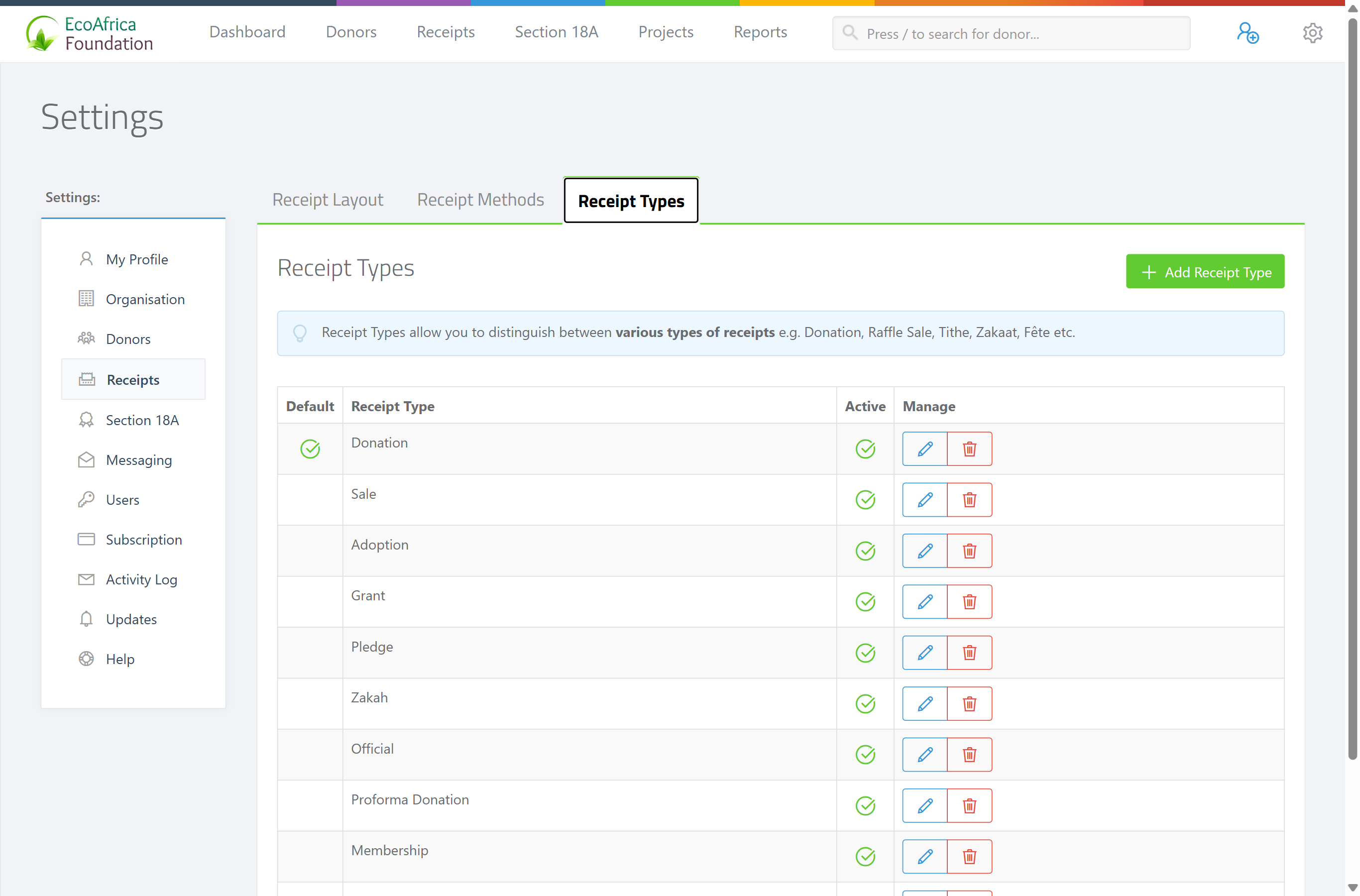
Adding a receipt type
Step 1: Open the form
Click the green Add Receipt Type button (top right of the panel). A pop-up form opens.
Step 2: Name the type
Enter the Name of the type (for example Donation, Tithe or Raffle).
Step 3: Set active and default
Tick Active to make it usable, and optionally set it as the default to make it the pre-selected type.
Step 4: Save
Save the form.
Editing a receipt type
In the type's row, click the blue pencil (edit) icon in the Manage column, change the name, active status or default status, and save.
The default type
One type can be the default, which is pre-selected when you capture a single receipt and is used for receipts created via CSV upload. Only an active type can be set as the default. You can't delete the default type — make another type the default first.
Activating / deactivating
The Active checkbox controls whether a type can be chosen. If a type is no longer used but has historical receipts, untick Active rather than deleting it, so existing receipts keep their type.
Deleting a receipt type
In the type's row, click the red trash (delete) icon in the Manage column and confirm.
You cannot delete a type if:
- it is the default type ("Cannot delete default receipt type."), or
- it has receipts attached — the message tells you how many receipts used it and suggests you Unpublish (deactivate) it instead.
Field reference
| Field | Required? | What to enter |
|---|---|---|
| Name | Yes | The type's label, e.g. Donation, Sale, Tithe, Raffle. |
| Active | Recommended | Tick to make the type selectable. |
| Default (set as default) | Optional | Pre-selects this type when capturing a receipt. Only an active type can be the default. |
Common issues & solutions
| What you see | What it means | How to fix it |
|---|---|---|
| "Cannot delete default receipt type." | The type you're deleting is the default. | Make another type the default first, then delete this one. |
| "X receipts were received using {type}. You can Unpublish this receipt type instead." | The type has receipts attached and can't be deleted. | Untick Active to retire it instead, keeping its receipts intact. |
FAQ
What receipt types come built in? Two: Donation (the default) and Sale. You can add your own, such as Raffle, Tithe, Zakaat or Fête.
How do I add a new receipt type like Raffle or Tithe? Go to Settings → Receipts → Receipt Types, click Add Receipt Type, enter the name, tick Active, and save.
Why can't I delete a receipt type? Either it's the default (make another the default first), or it has receipts attached (untick Active to retire it instead).
What's the difference between a receipt type and a receipt method? A receipt type is the kind of receipt (Donation, Sale). A receipt method is how the money came in (Cash, a bank account). See Receipt methods (what they are and managing them).