Generating the IT3(d) file for SARS
In short: Open IT3D Management → Section 18A Issued, pick the tax period, tick the certificates, and submit. ActiveDonor runs a compliance check first; if you're set up with ActiveDonor as your submitting entity, Submit to SARS files it directly, otherwise Download IT3(d) gives you the file to upload yourself. Your IT3(d) settings must be complete and you need a paid plan.
Overview
The IT3(d) is the electronic data file your Section 18A-approved organisation submits to SARS to declare the certificates it has issued. SARS reconciles what donors claim against this file, so you must submit it for each tax year.
ActiveDonor builds the SARS-compliant file for you, runs a compliance check before anything is sent, and — if you've chosen ActiveDonor as your submitting entity — uploads it to SARS directly so you can skip the manual eFiling step.
This article covers generating and submitting the file. Tracking the result afterwards is covered in "Tracking IT3(d) submissions".
Before you start
You'll need:
- The appropriate permission (Manage Certificates / settings access for IT3(d)).
- Your IT3(d) Settings completed — Submission File Header, Submitting Entity, and Reporting Entity. See "IT3(d) settings: Submitting Entity vs Reporting Entity".
- The certificates you want to include, existing and compliant (see "Run the compliance check" below).
- A paid plan. Legacy, trial, and certain monthly plans see an upgrade-required gate on the IT3(d) Management page.
⚠️ Important: If your IT3(d) settings aren't finished, ActiveDonor blocks you with "Please complete the IT3D settings first." If your Submitting Entity is ActiveDonor but you haven't ticked the authorization checkbox, you'll see Authorize Submission instead of Submit to SARS.
Choosing how to submit
| Method | How it works | Best for |
|---|---|---|
| ActiveDonor (Recommended) | ActiveDonor generates the file and submits it directly to SARS over HTTPS — no manual upload. The submission then appears under IT3(d) Submissions. | Most organisations — it's the one-click option. |
| Other (self-submit) | ActiveDonor generates the file for you to download; you upload it to SARS yourself (for example via eFiling). The file is still recorded so you can track it. | Organisations that prefer to file through their own eFiling profile. |
You set this under your Submitting Entity — see "IT3(d) settings: Submitting Entity vs Reporting Entity".
Generating & submitting the file
Step 1: Open IT3(d) Management
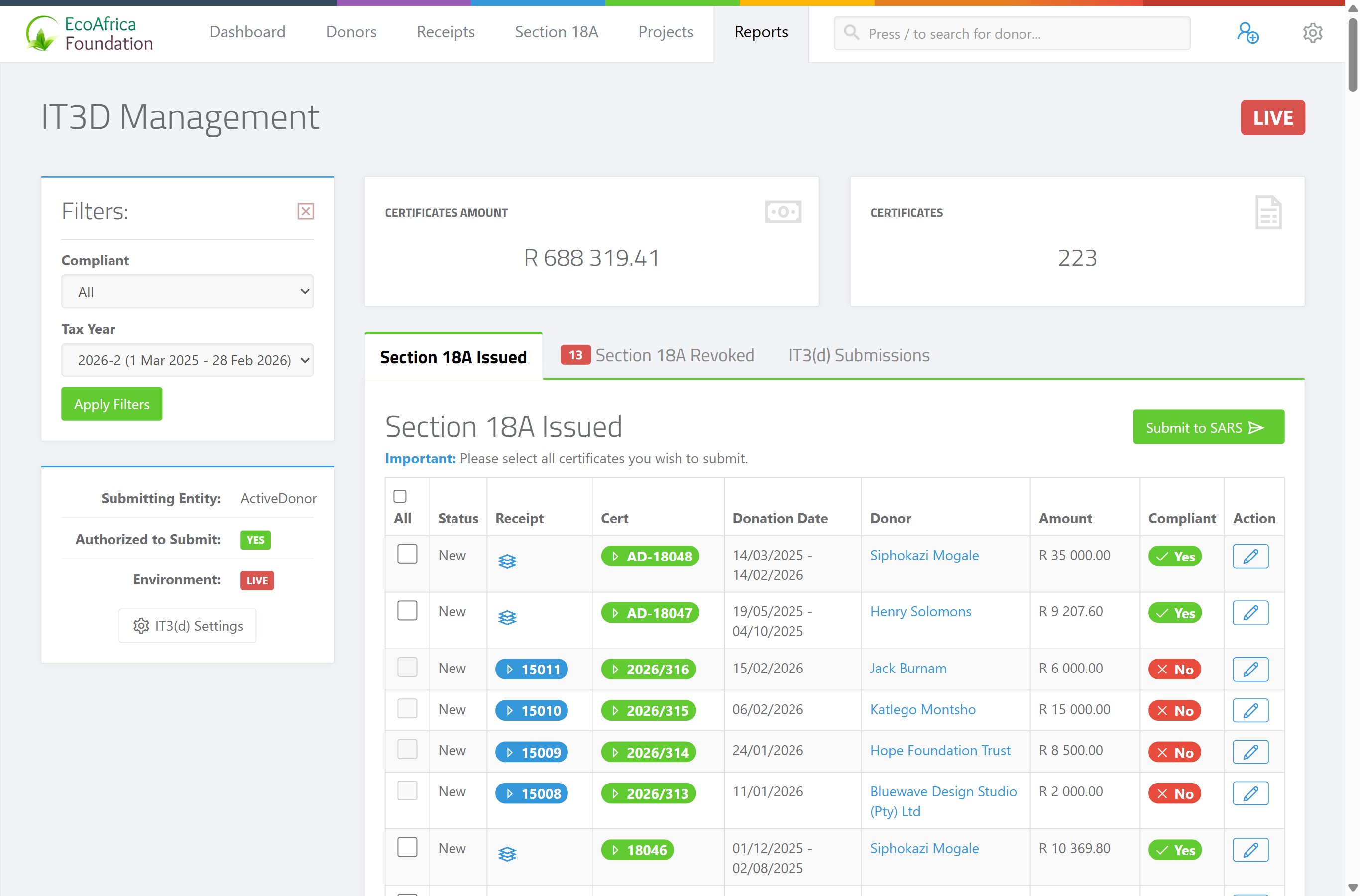
Open IT3D Management. The page shows a LIVE, TEST or MAINTENANCE label, summary stats (Certificates and Certificates Amount), and three tabs:
- Section 18A Issued — where you generate the file
- Section 18A Revoked
- IT3(d) Submissions — your submission history
Step 2: Choose the submission period
SARS expects an IT3(d) twice a year, so pick the tax period the file is for. The period suffix tells you which half:
- YYYY-8 — the interim period, 1 March to 31 August (typically submitted around September–October).
- YYYY-2 — the full tax year, 1 March to end of February (typically submitted around May–June).
For example, 2026-2 covers 1 Mar 2025 – 28 Feb 2026, while 2026-8 covers 1 Mar 2026 – 31 Aug 2026. ActiveDonor lists the available periods in the dropdown — choose the one you're filing for.
📌 Note: Because there are two submission windows a year, you submit an IT3(d) for each period — not once annually. If you issued no certificates in a period, you still file a Null Submission (see below).
Step 3: Select the certificates
On the Section 18A Issued tab, use the Compliant filter (All / Yes / No) to focus on the certificates ready to submit, then tick the ones you want to include.
💡 Tip: You must select at least one certificate, or you'll get "Please select at least one certificate to include in the IT3D."
Step 4: Run the compliance check
When you submit, ActiveDonor first runs a compliance check on the selected certificates and shows a "Compliance Check Complete" confirmation:
| Status | Meaning |
|---|---|
| 🟢 Compliant | Ready for submission (counted in green). |
| 🔴 Non-compliant | Missing or invalid information (counted in red and highlighted in the list). |
From here:
- If at least one is compliant, click "Submit N Compliant Certificate(s)" to proceed with just the compliant ones. The non-compliant ones are held back.
- If none are compliant, you'll see "There are no compliant certificates to submit." — fix them first (see "Fixing IT3(d) submission errors").
- Click "Cancel — Review Highlighted Rows" to go back and correct the non-compliant certificates.
Step 5: Submit or download
What happens next depends on your Submitting Entity:
- ActiveDonor: Click Submit to SARS. ActiveDonor generates and submits the file directly. It then appears under IT3(d) Submissions.
- Other: Click Download IT3(d). ActiveDonor generates the file for you to download and upload to SARS yourself. It's still recorded so you can track it.
Null submissions
If you have no certificates to report for a period but SARS still expects a return, submit a Null Submission. On the IT3(d) Management page, use Submit Null Submission. SARS accepts it with response code R003, and it appears under your submissions as a "Null Submission".
Test before you go live
Before your real (Live) submission, you can run a Test submission by setting the Test Data Indicator to Test (T) in the Submission File Header (see "IT3(d) submission file headers"). A test validates the file without recording anything against donors.
📌 Remember: Switch the Test Data Indicator back to Live (L) for the real submission — otherwise your filing is treated as a test and nothing reaches SARS for real.
Common issues & solutions
| What you see | What it means | How to fix it |
|---|---|---|
| "Please complete the IT3D settings first." | One or more IT3(d) settings panels are incomplete. | Finish all three panels (Submission File Header, Submitting Entity, Reporting Entity) and save them. |
| "Please select at least one certificate to include in the IT3D." | No certificate was ticked. | Select one or more certificates before submitting. |
| Authorize Submission shows instead of Submit to SARS. | You chose ActiveDonor as Submitting Entity but haven't authorized it. | Tick the authorization checkbox on the Reporting Entity form. See "IT3(d) settings: Submitting Entity vs Reporting Entity". |
| "There are no compliant certificates to submit." | All selected certificates failed the compliance check. | Fix the highlighted certificates and try again. See "Fixing IT3(d) submission errors". |
| The page shows an upgrade-required message. | IT3(d) submission needs a qualifying paid plan. | Upgrade to submit. |
| My submission was treated as a test. | The Test Data Indicator was on Test (T). | Set it to Live (L) and resubmit. |
FAQ
How do I submit my certificates to SARS? Open IT3D Management → Section 18A Issued, choose the tax period, tick the certificates, and submit. With ActiveDonor as your submitting entity it's one click; otherwise download the file and upload it to SARS yourself.
Why does it say "Please complete the IT3D settings first"? One of the three IT3(d) settings panels is incomplete. Finish the Submission File Header, Submitting Entity and Reporting Entity — see IT3(d) settings: Submitting Entity vs Reporting Entity.
Some of my certificates are non-compliant — can I still submit? Yes. The compliance check lets you submit just the compliant ones; the non-compliant ones are held back until you fix them (see Fixing IT3(d) submission errors).
I issued no certificates this period — do I still file? If SARS expects a return, submit a Null Submission. SARS accepts it with response code R003.
How do I check my file before sending it for real? Set the Test Data Indicator to Test (T) in the Submission File Header, submit, then switch back to Live (L) for the real one — see IT3(d) submission file headers.
Where do I see whether SARS accepted it? Under IT3(d) Submissions — see Tracking IT3(d) submissions.
Is the IT3(d) submitted once a year or twice a year? Twice a year — an interim period (YYYY-8, 1 March – 31 August) and the full-year period (YYYY-2, 1 March – end February). See Is the IT3(d) submitted once or twice a year, and when is it due? for the due dates.
If ActiveDonor submits for me, do I still need to file IT3D02 on SARS eFiling? No. When ActiveDonor is your submitting entity it uploads the file directly to SARS, so there's no separate eFiling step. Self-submitters (Submitting Entity = Other) download the file and upload it to SARS themselves.
My IT3(d) status says "ALL ACCEPTED" — is there anything else to do? No. Every certificate in that file was accepted by SARS; no further action is needed for that submission.
Related
- Why aren't my certificates showing in IT3(d) Management?
- Is the IT3(d) submitted once or twice a year, and when is it due?
- IT3(d) settings: Submitting Entity vs Reporting Entity
- IT3(d) submission file headers (Test/Live, channel, source identifier)
- Tracking IT3(d) submissions
- What each IT3(d) submission status means
- Fixing IT3(d) submission errors
- Batch and combined Section 18A certificates
- Revoking a Section 18A certificate
- Section 18A issued and revoked reports
Need a hand?
If a submission fails for a reason you can't resolve, contact ActiveDonor support with the tax period and, if you have it, the submission's file ID — and we'll investigate.