Giving by tag report
In short: Open Reports, then Giving by tag under the Donations panel. The report shows how much each donor tag has raised in the period you choose with the date range picker (top right). It defaults to the current tax year. You need the View Reports permission.
Overview
The Giving by Tag report measures the performance of the segments you tag your donors with — for example "Major Donor", "Monthly Giver" or a specific appeal label. The page is titled Giving by Tag. Use it to see which segments raise the most, how many donors each tag covers, and each tag's share of total giving.
Before you start
You'll need:
- The View Reports permission.
- Tags applied to donors, and those donors must have receipts in the selected period. Tags are managed on each donor's record — see Donor tags and categories (how to create tags and apply them to donors).
Running the report
Step 1: Open the report
Open Reports from the main navigation, then click Giving by tag in the Donations panel.
Step 2: Choose the period
Use the date range picker at the top right to choose the period. The named ranges are: Current tax year (default), Previous tax year, This calendar year, Last 12 months and Lifetime.
Step 3: Set filters and apply
Set any filters in the left sidebar (see Field reference), then click Apply Filters.
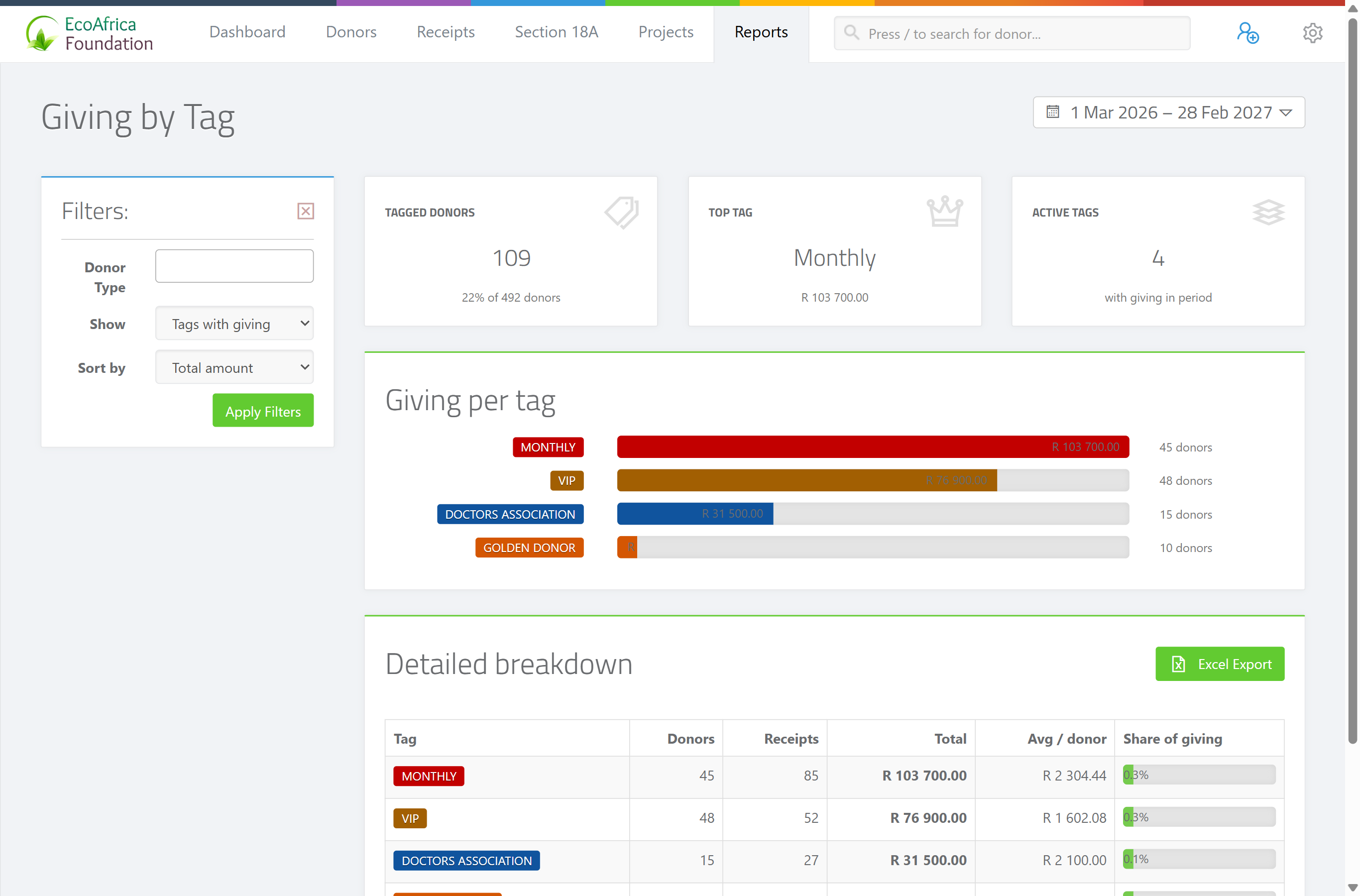
The summary cards
Three cards appear above the table:
- Tagged Donors — the number of donors who have at least one tag and gave in the period.
- Top Tag — the tag that raised the most in the period.
- Active Tags — the number of tags that had giving in the period.
The results table
One row per tag, with these columns:
- Tag — the tag name.
- Donors — how many tagged donors gave in the period.
- Receipts — the number of receipts from those donors.
- Total — the total amount raised under that tag.
- Avg / donor — the average amount per donor for that tag.
- Share of giving — that tag's percentage of all giving in the period.
If there is no tagged giving in the selected period, the page shows: "🏷️ No tagged giving in this period."
Exporting to Excel
Add format=xlsx (the Excel export option on the page) to download the per-tag figures as a spreadsheet. The file downloads as ad_giving_by_tag_report_<date>.xlsx.
How the tax year is defined
The South African tax year runs 1 March to the end of February, so Current tax year and Previous tax year use those boundaries rather than calendar-year boundaries.
Field reference
| Filter | Where | Values |
|---|---|---|
| Donor Type | Sidebar | Multi-select. Any of: Individual, Company, Company (Public), CC, NPC, Trust, Association, Estate. Leave blank for all types. |
| Show | Sidebar | "Tags with giving" (default — only tags that raised money in the period) or "All tags (incl. zero)" (every tag, including those with no giving). |
| Sort by | Sidebar | "Total amount" (default), "Donor count", "Avg per donor" or "Tag name". |
| Date range | Top right | Current tax year (default), Previous tax year, This calendar year, Last 12 months, Lifetime. |
Common issues & solutions
| What you see | What it means | How to fix it |
|---|---|---|
| "🏷️ No tagged giving in this period." | No tagged donor gave money in the selected period. | Widen the date range, set Show to "All tags (incl. zero)", or check that your donors actually have tags — see Donor tags and categories. |
| A tag you expect is missing. | The Show filter is set to "Tags with giving" and that tag raised nothing in the period. | Set Show to "All tags (incl. zero)". |
| The Excel export button hovers/spins and the file won't download. | The export is still building, or the page lost its connection. | Wait a few seconds; if it doesn't finish, refresh the page and try again. If it keeps failing, contact support. |
FAQ
How do I see which donor segments raise the most? Open Giving by tag. It ranks each tag by total raised, with donor counts and each tag's share of giving.
Can I export the giving-by-tag figures to Excel?
Yes — use the Excel export on the page. The file downloads as ad_giving_by_tag_report_<date>.xlsx.
Why is a tag missing from the report? By default the report only lists tags that raised money. Switch Show to "All tags (incl. zero)" to include tags with no giving.
How do I pick the tax year? Use the date range picker at the top right and choose Current tax year or Previous tax year. The SA tax year runs 1 March to the end of February.