Completing the onboarding wizard
In short: The first time you sign in, answer the three short onboarding screens about your organisation and select Complete Setup on the last one. You must finish the wizard before you can reach the rest of the app — until it's done, ActiveDonor keeps returning you to the onboarding page.
Overview
When you first sign in to a new ActiveDonor workspace, a three-step onboarding wizard asks a few questions about your organisation. Your answers help ActiveDonor tailor your experience and are sent to the ActiveDonor team. There are no wrong answers — these questions are about your organisation, not a test. The wizard remembers your progress, so if you leave partway through you return to the step you last reached.
Before you start
You'll need:
- To be signed in as an active user. New accounts are sent here automatically after sign-up.
⚠️ Important: You can't reach the dashboard or any other page until the wizard is complete. If the app keeps sending you back to onboarding, you haven't yet selected Complete Setup on the final step.
Completing the wizard
Step 1: Tell us about your organisation
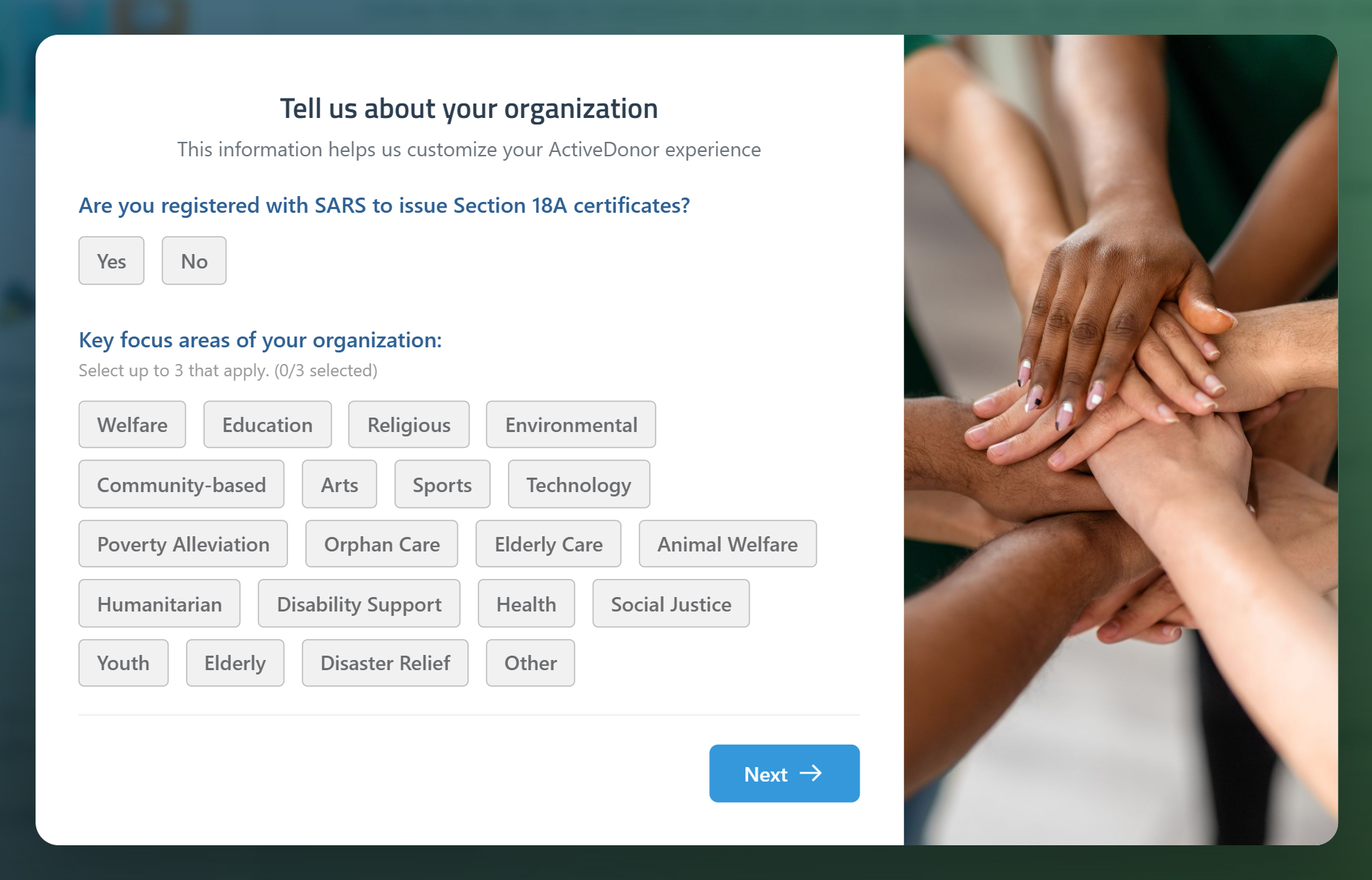
The first screen is headed Tell us about your organization with the note "This information helps us customize your ActiveDonor experience".
- Under Are you registered with SARS to issue Section 18A certificates?, select Yes or No.
- Under Key focus areas of your organization:, select up to three options. The hint reads "Select up to 3 that apply." and a counter shows how many you've chosen (for example "(1/3 selected)"); once three are selected the rest are disabled.
- Select Next →.
The focus-area options are: Welfare, Education, Religious, Environmental, Community-based, Arts, Sports, Technology, Poverty Alleviation, Orphan Care, Elderly Care, Animal Welfare, Humanitarian, Disability Support, Health, Social Justice, Youth, Elderly, Disaster Relief, Other.
Step 2: Help us understand your needs
The second screen is headed Help us understand your needs with the note "This helps us show you the most relevant features".
- Under How many donors do you currently have?, select one: Fewer than 100, 100-499, 500-1999, 2000-4999, or +5000 (5000 or more).
- Under What features are most important to you right now?, select up to three: Donor management, Donation receipts, Section 18A certificates, IT3D Submissions, Reporting, or Online fundraising pages.
- Select Next →. (Use Previous to go back to step 1.)
Step 3: Almost done
The final screen is headed Almost done! with the note "Just a few more details to complete your setup".
- Under How do you currently manage your donor information?, select one: Spreadsheet, Accounting software, CRM tool, Paper records, or Not currently managing.
- Under How did you hear about ActiveDonor?, select one: Google, YouTube, Facebook, Instagram, Twitter, LinkedIn, Referral from NPO, Hashtag Nonprofit, Webinar or event, Online article or news site, or Other.
- Select Complete Setup.
When you select Complete Setup, your onboarding is marked finished, your answers are sent to the ActiveDonor team, and you're taken to your dashboard — which then shows your setup checklist (see Using the setup checklist).
Selecting and changing answers
- Single-choice questions (SARS registration, donor count, management method, how you heard about us) keep only your latest selection.
- Multi-choice questions (focus areas, important features) let you pick up to three. Select an option again to remove it. You must pick at least one on each multi-choice question.
- You can move between steps you've already reached using the Previous and Next buttons.
Field reference
| Question | Required? | What to enter |
|---|---|---|
| Registered with SARS for Section 18A | Yes | Yes or No |
| Key focus areas | Yes | 1 to 3 options from the focus-area list |
| How many donors | Yes | One band: Fewer than 100 / 100-499 / 500-1999 / 2000-4999 / 5000 or more |
| Important features | Yes | 1 to 3 options from the feature list |
| How you manage donor information | Yes | One: Spreadsheet / Accounting software / CRM tool / Paper records / Not currently managing |
| How you heard about ActiveDonor | Yes | One option from the source list |
Common issues & solutions
| What you see | What it means | How to fix it |
|---|---|---|
| "Please answer the required questions" | One or more questions on the current step are unanswered. | Make a selection for each question, then continue. Multi-choice questions need at least one selection. |
| The app keeps sending you back to onboarding. | The wizard isn't complete yet. | Work through all three steps and select Complete Setup on the final step. |
| You can't select a fourth focus area or feature. | These questions allow a maximum of three selections. | Deselect one option before choosing another. |
FAQ
Can I skip the onboarding wizard? No. You must complete all three steps and select Complete Setup before you can reach the dashboard or any other page.
I left halfway — do I have to start over? No. The wizard remembers your progress and returns you to the step you last reached.
Do my answers change what I can do in ActiveDonor? They tailor your experience and tell the ActiveDonor team about your organisation. They don't lock or unlock features — you can use everything your plan includes regardless of your answers.
Why can't I pick more than three focus areas or features? Those questions cap selections at three. Deselect one to choose a different one.
What this does not do
- It does not set up your charity's details, logo, projects or donors — that's the setup checklist afterwards (see Using the setup checklist).
- Your answers do not restrict any features; they only help tailor your experience.
Related
- Registering for an ActiveDonor account
- Using the setup checklist
- Understanding your dashboard
- Organisation settings
Need a hand?
If the wizard won't let you continue even after answering every question, contact ActiveDonor support and let them know which step you're stuck on.