Syncing your newsletter list
In short: Open Settings → Messaging → Newsletter Sync tab, set Newsletter provider to Mailchimp, enter your Mailchimp API Key, Audience ID and Audience Name, and click Save. ActiveDonor then copies your ActiveDonor donors into that Mailchimp audience and keeps them in step. You need the Manage Settings permission. Mailchimp is the only supported provider.
Overview
Newsletter sync copies the donors you keep in ActiveDonor into a Mailchimp audience (Mailchimp's word for a subscriber list), so your newsletter list stays up to date automatically. Once enabled, ActiveDonor keeps the two in step on a roughly 24-hour cycle. This article covers connecting Mailchimp, what each field and status banner means, and how to turn the sync off.
Before you start
You'll need:
- The Manage Settings permission.
- A Mailchimp account with an API key, plus the Audience ID and Audience Name of the audience you want to sync into. Find these in your Mailchimp account.
- Mailchimp is the only supported provider. The only other choice in the dropdown is Disable Sync.
📌 Note: Mailchimp API keys include a server-location suffix after a hyphen (for example
…-us21). ActiveDonor reads that suffix automatically — copy the full key.
Enabling Mailchimp sync
Step 1: Open the Newsletter Sync tab
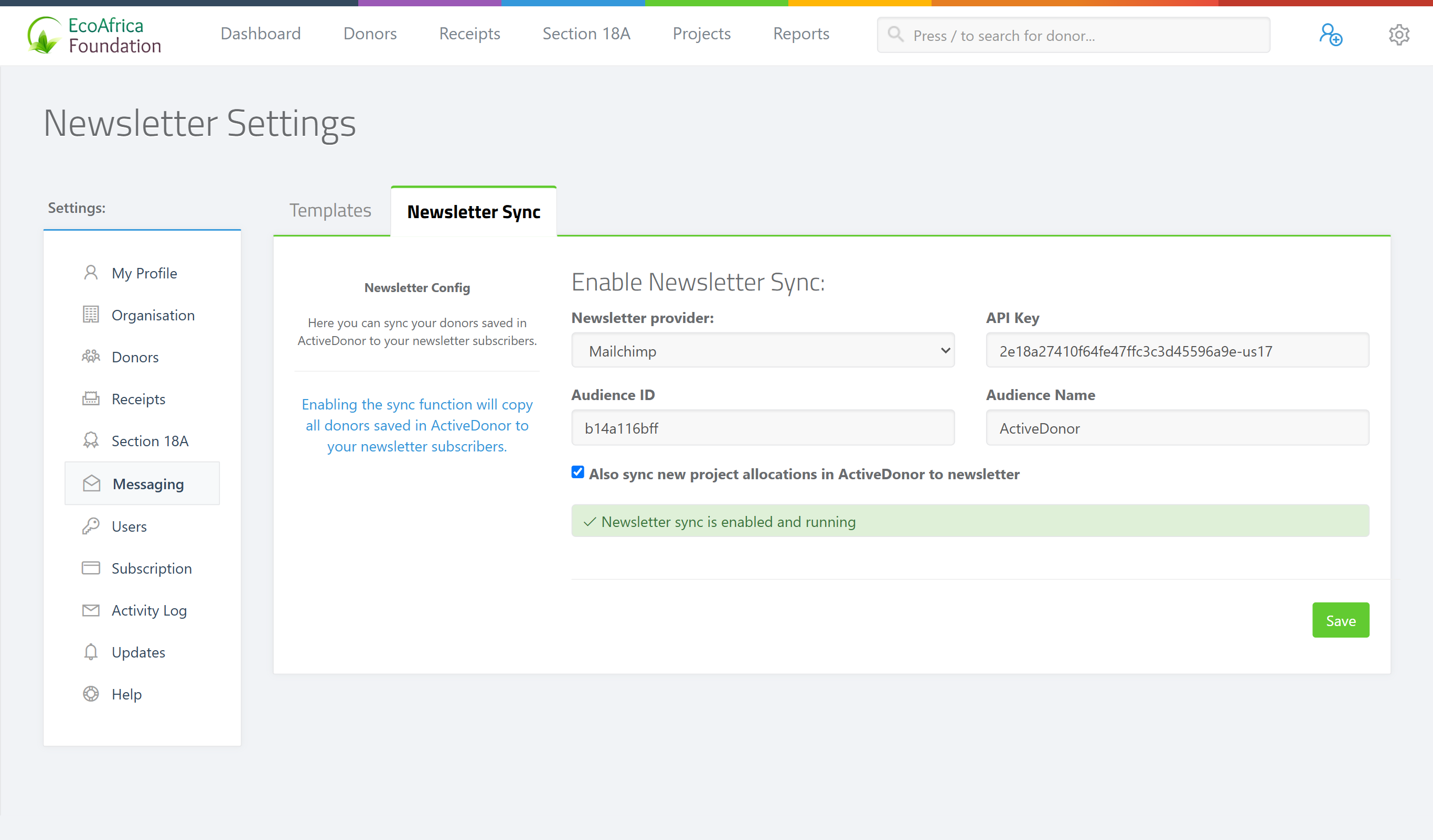
In the top navigation bar, open the gear / cog dropdown and select Settings. In the left-hand Settings menu, select Messaging, then open the Newsletter Sync tab.
Step 2: Choose Mailchimp
Under Enable Newsletter Sync, set Newsletter provider to Mailchimp. The API Key, Audience ID and Audience Name fields become editable.
Step 3: Enter your Mailchimp details
- API Key — your full Mailchimp API key (including the server suffix after the hyphen).
- Audience ID — the list's ID in Mailchimp.
- Audience Name — the exact name of that audience.
Step 4: Optionally sync project allocations
Tick Also sync new project allocations in ActiveDonor to newsletter to push project-allocation changes as well.
Step 5: Save
Click Save. ActiveDonor validates your key and audience against Mailchimp. If everything matches, the sync turns on, a first bulk sync is queued as a background job, and a green confirmation appears. A note on the page explains: "Enabling the sync function will copy all donors saved in ActiveDonor to your newsletter subscribers."
What the status banners mean and how to tell a sync is done
After saving, a coloured banner shows the current state. There is no separate "sync complete" pop-up — completion is signalled by the banner changing and the Save button becoming clickable again:
- 🟢 Green "Great! Newsletter Sync is in progress. Please wait for another 24 hours to make any changes." — a bulk sync is currently running. While this shows, the Save button is disabled. This is the normal state right after you first enable or change the sync.
- 🟢 Green "Newsletter sync is enabled and running" — the bulk sync window has passed (more than a day since the last bulk sync), everything is connected, and Save is available again. This is your "sync is done and steady" signal.
- 🟡 Yellow "Newsletter sync is disbaled" — sync is turned off. (The word is spelled this way on screen.)
- 🟡 Yellow "Error. Newsletter Sync has stopped. Invalid Newsletter API settings provided. Please update Newsletter settings to enable Sync." — your Mailchimp settings are no longer valid; re-enter them and save again.
💡 Tip: So "how do I know the sync is complete?" — when the banner stops saying "…in progress. Please wait for another 24 hours…" and instead reads "Newsletter sync is enabled and running", and the Save button is clickable, the bulk sync is finished and ongoing syncing is steady. Donors appear in Mailchimp as the background job processes them.
Disabling sync
Step 1: Switch the provider off
On the Newsletter Sync tab, set Newsletter provider to Disable Sync.
Step 2: Save
Click Save. Donor and project syncing stop. You can re-enable Mailchimp later by re-entering your details.
What this does not do
- It does not support any provider other than Mailchimp (the only other option is Disable Sync).
- It does not give you a live percentage or a "complete" pop-up — gauge progress by the status banner and whether Save is enabled.
- It does not sync instantly. The first run is a background bulk job and can take time to process all donors; ongoing syncing runs on roughly a 24-hour cycle.
Field reference
| Field | Required? | What to enter |
|---|---|---|
| Newsletter provider | Yes | Mailchimp, or Disable Sync |
| API Key | Yes (Mailchimp) | Your full Mailchimp API key (includes the server suffix after the hyphen) |
| Audience ID | Yes (Mailchimp) | The list/audience ID from Mailchimp |
| Audience Name | Yes (Mailchimp) | The exact audience name from Mailchimp |
| Also sync new project allocations in ActiveDonor to newsletter | No | Tick to also push project-allocation changes |
Common issues & solutions
| What you see | What it means | How to fix it |
|---|---|---|
| "Invalid MailChimp API key format!" | The key has no server-location suffix (the part after the hyphen). | Copy the full key from Mailchimp, including the -xxNN suffix. |
| "Invalid MailChimp API key supplied!" | Mailchimp rejected the key. | Check the key is correct and still active in your Mailchimp account. |
| "Error 404. Audience ID not found!" | The Audience ID doesn't exist in your Mailchimp account. | Re-copy the Audience ID from Mailchimp. |
| "There is no Audience named '{name}'." | The Audience ID exists, but the Audience Name you typed doesn't match it. | Use the exact audience name from Mailchimp. |
| The Save button is greyed out | A bulk sync is in progress. | Wait until the 24-hour sync window completes; the banner will change to "enabled and running" and Save will re-enable. |
| Donors aren't in Mailchimp yet | The first bulk sync is a background job still working through your donors. | Give it time; large donor lists take longer to process. |
FAQ
How do I know when a sync is complete? When the status banner stops showing "Newsletter Sync is in progress. Please wait for another 24 hours…" and instead reads "Newsletter sync is enabled and running" — and the Save button becomes clickable again. There's no separate "done" pop-up.
Why is the Save button greyed out? A bulk sync is in progress. The button re-enables once the 24-hour sync window has passed.
Which newsletter providers are supported? Only Mailchimp. The only other dropdown choice is Disable Sync.
Where do I find my API key, Audience ID and Audience Name? In your Mailchimp account. Copy the full API key (including the suffix after the hyphen), and the audience's ID and exact name.
My valid key is rejected with "Invalid MailChimp API key format!" — why?
That error means the key has no server-location suffix. Make sure you copied the whole key, including the -xxNN part after the hyphen.
How do I turn the sync off? Set Newsletter provider to Disable Sync and click Save. Syncing stops; re-enter your details later to switch it back on.
Related
- Message and email templates
- Configuring donor settings and capture forms
- Allocating receipts to projects
Need a hand?
If the connection keeps failing after you've re-copied your Mailchimp details, contact ActiveDonor support with the exact error banner you're seeing.