Adding a donor (types and required fields)
In short: Click the person-plus (Add New Donor) icon in the top navigation bar, choose a Donor Type, fill in the name fields and at least one contact detail (a Cellphone or an E-mail), then click Create Donor. You need the Add Donor (or Manage Donors) permission, and you must be under your plan's donor limit.
Overview
A donor is any person or organisation that gives to your charity. You must add a donor before you can capture a receipt or issue a Section 18A certificate (a tax certificate that lets a South African donor claim a deduction from SARS). The same form is used for people and for businesses or companies — your Donor Type choice decides which name and identity fields appear.
Before you start
You'll need:
- The Add Donor or Manage Donors permission. If you do not see the Add New Donor option, ask an administrator at your charity to grant it.
- Room under your plan's donor limit. Your subscription sets a maximum number of donors; when you reach it the form is replaced with an upgrade prompt.
- At least one way to reach the donor — a Cellphone number or an E-mail address. If you genuinely have neither, tick Phone & Email is unavailable.
⚠️ Important: If you leave both Cellphone and E-mail empty without ticking Phone & Email is unavailable, the form shows "Cellphone OR Email is required." and will not save.
Adding the donor
Step 1: Open the Add New Donor window
In the top navigation bar, click the person-plus icon (the Add New Donor icon, to the right of the search box). The Add New Donor window opens.
Step 2: Choose the donor type
Pick the donor's type from the Donor Type dropdown (top-right of the window). The options are exactly: Individual, Company, Company (Public), CC, NPC, Trust, Association and Estate. Your choice changes which name fields appear — see Donor types explained (covers what each type means and how it is stored). Individual and Estate ask for a First Name and Last Name; every other type asks for an Entity Name.
Step 3: Fill in the donor form
The form is divided into Personal Details (or Organization Details for entities), Donor Information, Postal Address and Tax Information. Complete the required fields (see Field reference below).
Step 4: Decide on Section 18A
Tick Donor requires a Section 18A Certificate. if the donor wants a SARS tax certificate for their donations. See The Section 18A toggle below.
Step 5: Save
Click Create Donor. ActiveDonor saves the donor and takes you to the receipt-capture page for that new donor so you can add their first donation.
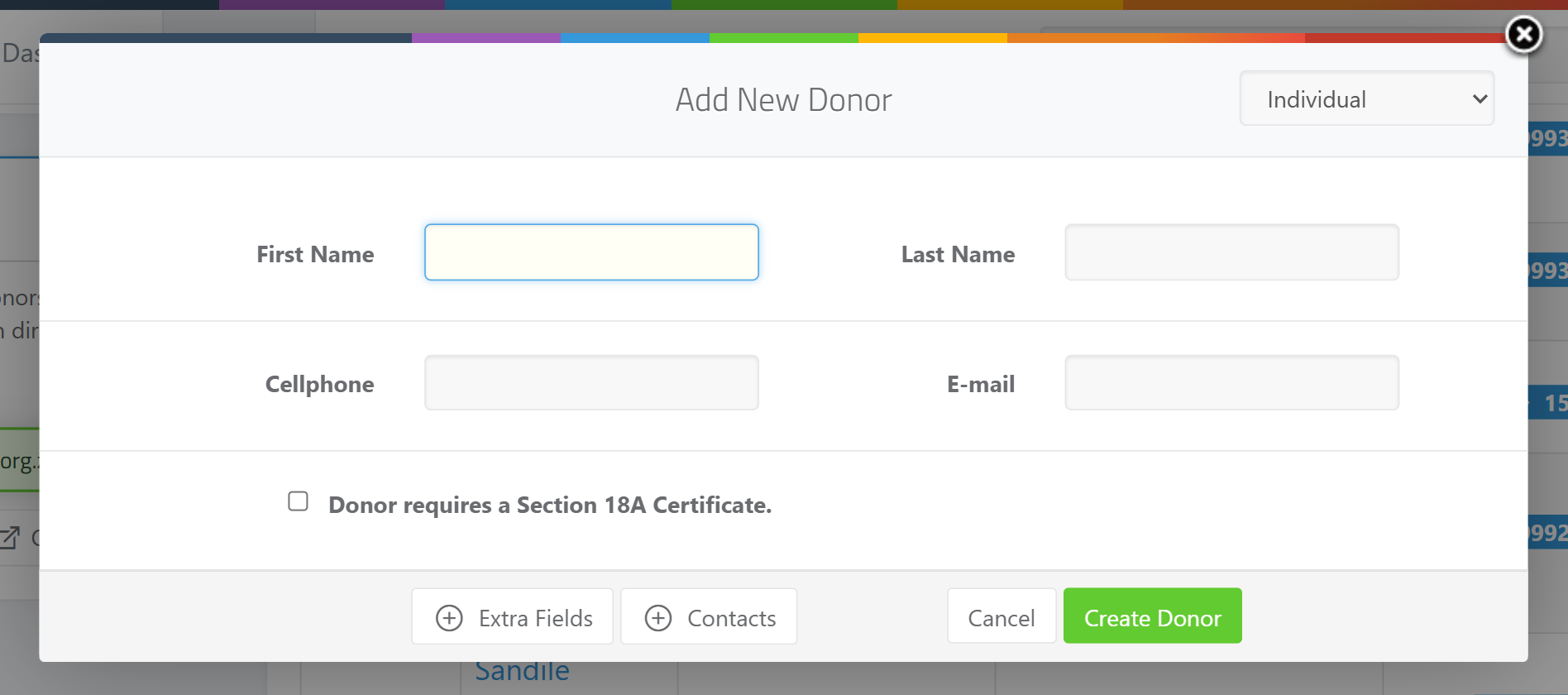
Choosing the donor type
The type decides whether the donor is treated as a person or an organisation:
- Individual and Estate are treated as a person — you enter a First Name and Last Name.
- Company, Company (Public), CC, NPC, Trust and Association are treated as an entity — you enter an Entity Name instead.
Company (Public) is stored as the value Public Company (so reports show "Public Company"). The type also controls how identity and registration numbers are validated in the Tax Information section — see Adding tax and ID information to a donor (SA IDs must be 13 valid digits; entity registration numbers follow CCYY/NNNNNN/MM).
Required versus optional fields
When you click Create Donor, ActiveDonor enforces:
- Donor Type is always required (a bare "Entity" is rejected — pick a specific type).
- First Name and Last Name are required when the type is Individual or Estate.
- Entity Name is required for every other type (Company, Company (Public), CC, NPC, Trust, Association). If missing you'll see "An entity name is required for non-individual donors."
- A Cellphone number or an E-mail address is required, unless you tick Phone & Email is unavailable.
- A Cellphone, Landline or Fax number, when entered, must match the pattern start with
0or+, then at least 9 more digits (for example0821234567or+27821234567). A wrong format shows "Format should be 0XXXXXXXXX". - An E-mail address, when entered, must be a valid, real email address (it is checked against live mail records).
- A Country is required.
- For Individual donors, an ID Type (ID or Passport) and a Country of Issue are required.
All other fields (Reference, Title, Gender, Landline, Language, address lines, Tax No., Trading Name, Tags, Fundraiser and so on) are optional.
The Section 18A toggle
The form has a checkbox labelled Donor requires a Section 18A Certificate. Tick it when the donor wants a SARS tax certificate for their donations. A Section 18A certificate lets the donor claim their donation as a deduction on their SARS tax return.
When ticked, ActiveDonor expects the donor's tax details — an ID or registration number, ideally a tax number, and an address — so valid certificates can be issued later. You can complete those now in the Tax Information section, or add them afterwards from the donor's profile (see Adding tax and ID information to a donor).
Extra fields
Click the Extra Fields button to reveal additional optional fields, including Reference, Title, Gender (Male or Female), Landline, Language, Postal Address, Tags, Fundraiser and (for entities) a Trading Name. Use Reference to store your own internal donor number, and Fundraiser to link the donor to a staff member who holds the Fundraiser role.
Contacts
For organisations (and for individuals with a representative), click the Contacts button to add one or more contact people — for example a treasurer or trustee. Each contact has a First Name, Last Name, Cellphone, Email and Relationship. Contacts are people you deal with at the donor; they are separate from the donor's own phone numbers and email addresses. See Adding and managing contacts on a donor for detail.
💡 Tip: When you add a contact block, the contact's First Name and Last Name become required for non-individual donors — empty contact blocks are not saved.
What this does not do
- Adding a donor does not create a receipt or a certificate. After saving you are taken to capture the donor's first receipt — see Creating a receipt.
- It does not validate a missing tax number. You can save a donor without tax details and add them later.
Field reference
| Field | Required? | Notes |
|---|---|---|
| Donor Type | Always | Individual, Company, Company (Public), CC, NPC, Trust, Association, Estate. "Company (Public)" is stored as Public Company. |
| First Name | Yes for Individual/Estate | Person name. |
| Last Name | Yes for Individual/Estate | Person name. |
| Entity Name | Yes for all other types | Organisation name. |
| Cellphone | One of Cellphone or E-mail | Must start with 0 or + and have 9+ more digits; no spaces. |
| One of Cellphone or E-mail | Must be a valid, real email address. | |
| Phone & Email is unavailable | Optional checkbox | Tick only if you truly have neither. |
| Landline | Optional | If entered, same format as Cellphone. |
| Country | Always | Selected from the country list. |
| ID Type | Yes for Individual | ID or Passport. |
| Country of Issue | Yes for Individual | The issuing country. |
| Donor requires a Section 18A Certificate. | Optional checkbox | Tick to issue tax certificates. |
| Reference | Optional | Your own internal donor number. |
| Title | Optional | E.g. Mr, Mrs, Dr. |
| Gender | Optional | Male or Female. |
| Language | Optional | |
| Trading Name | Optional (entities) | Trading-as name. |
| Tags | Optional | Donor labels/categories. |
| Fundraiser | Optional | A staff member with the Fundraiser role. |
Common issues & solutions
| What you see | What it means | How to fix it |
|---|---|---|
| "Cellphone OR Email is required." | Both Cellphone and E-mail are empty and Phone & Email is unavailable is not ticked. | Enter a cellphone or email, or tick Phone & Email is unavailable. |
| "Format should be 0XXXXXXXXX" | The Cellphone, Landline or Fax doesn't match 0/+ then 9+ digits. | Enter the number with no spaces, e.g. 0821234567 or +27821234567. |
| "An entity name is required for non-individual donors." | An entity type was chosen but Entity Name is empty. | Enter the organisation's name, or change the type to Individual/Estate. |
| The Create Donor button does nothing / the form will not save | A required field is missing or invalid. | Check the name fields, the cellphone/email format, and that a Country is selected. |
| Upgrade prompt instead of the donor form | You've reached your plan's donor limit. | Upgrade your plan, or remove donors you no longer need. |
| "Invalid Registration Number: Format should be CCYY/NNNNNN/MM." | An entity registration number is the wrong format. | Re-enter as CCYY/NNNNNN/MM, e.g. 2015/123456/07. See Adding tax and ID information to a donor. |
| "Invalid ID Number: The provided South African ID number is not valid." | A South African ID isn't 13 valid digits. | Re-check each digit; SA IDs are 13 digits and pass a checksum. |
FAQ
How do I add a business or company donor? Click Add New Donor, set Donor Type to Company, Company (Public), CC, NPC, Trust or Association, and fill in the Entity Name instead of first and last names. See Donor types explained.
Do I have to enter a phone number and an email? No — you need at least one of them. If you have neither, tick Phone & Email is unavailable.
Why won't my donor save even though the fields look filled in?
The most common causes are a phone number with spaces (it must be 0 or + followed by digits only), an invalid email, or a missing Country. Fix the highlighted field and try again.
Where do I put the donor's income tax number? On the donor, in the Tax Information section (the Tax No. field). This is the donor's SARS tax number — your own organisation's PBO/tax number lives in your settings, not on the donor.
Can I add a contact or next-of-kin to a company profile? Yes — click Contacts on the donor form and add the person's name, cellphone, email and relationship. See Adding and managing contacts on a donor.
I can't open the Add New Donor form at all. You may not have the Add Donor (or Manage Donors) permission, or you've hit your plan's donor limit. Check both.
Related
- Donor types explained
- Adding tax and ID information to a donor
- Adding and managing contacts on a donor
- Adding phone numbers, emails and addresses
- Editing a donor's details
Need a hand?
If a donor won't save and the fixes above don't help, contact ActiveDonor support with the donor's name and the type you're trying to add, and we'll take a look.