Editing your profile (My Account)
In short: Open My Account from the top-bar gear menu, edit your Name, E-mail Address or password, and select Update. If you have the Manage Certificates permission, you can also upload the electronic signature that prints on Section 18A certificates you issue.
Overview
Your profile is where you change your own name, email address and password — and, if you issue Section 18A certificates, upload the handwritten-style signature that appears on certificates you generate. Editing other users' accounts is a separate task that needs the Manage Users permission (see Managing users).
Before you start
You'll need:
- Nothing special to edit your own profile — anyone can.
- The Manage Certificates permission to see the electronic-signature section (it only appears on your own account).
Opening your profile
- In the top navigation bar, open the gear / cog dropdown (far right).
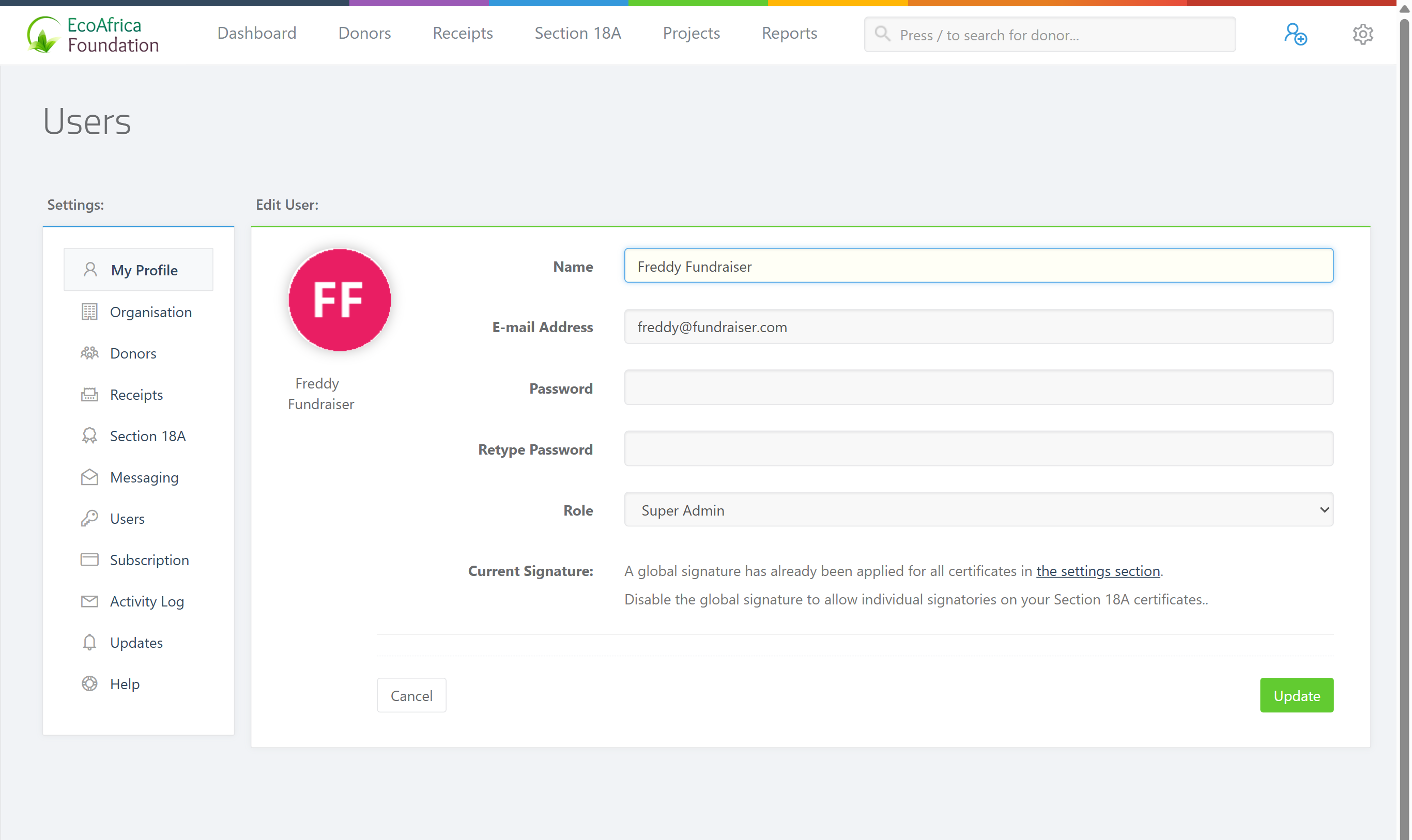
- Select My Account. The "Edit User" form opens, pre-filled with your details and showing your avatar.
📌 Note: The settings icon is the gear / cog in the top-right of the navigation bar. The same menu holds My Account, Help & Training and Logout.
Changing your name and email
- Edit the Name and/or E-mail Address fields.
- Select Update.
- A green "Profile successfully updated" message confirms the change.
Your email address must be unique across your workspace's users. Changing your email also re-syncs your details with ActiveDonor's mailing system.
Changing your password
The form shows Password and Retype Password fields.
- To change your password, type the new password into both fields (they must match) and select Update.
- Leave both blank to keep your current password.
⚠️ Important: For security, updating your profile signs out any other devices or API tokens linked to your account.
Uploading your electronic signature (Section 18A)
If you have the Manage Certificates permission, an Electronic Signatures section appears on your own profile. This is the signature image placed on Section 18A certificates you issue.
Step 1: Choose a signature image
Scroll to the Electronic Signatures section. Under Upload New Signature:, select a signature image file.
Step 2: Decide whether to auto-sign
Optionally tick "Automatically sign all Section 18A certificates issued by me with the uploaded signature?" to apply your signature to every certificate you issue from now on. Leave it unticked to add the signature only when you choose.
Step 3: Save
Select Update.
A banner above the section tells you the current state:
| State | Banner text |
|---|---|
| No signature uploaded | "Any Section 18A genetated will not include an electronic signature." |
| Signature uploaded, auto-sign on | "All Section 18A you geneate will contain this electronic signature from now onwards" |
| Signature uploaded, auto-sign off | A note that the signature will NOT be applied automatically, and to tick the checkbox to enable automatic signing. |
To remove an existing signature, tick "CHECK HERE TO DELETE THIS SIGNATURE" beneath the current signature preview, then select Update.
When signature upload is locked
If your organisation has set a single global signature for all certificates (in certificate settings, with automatic signing on), the per-user upload is disabled. The page then explains that "A global signature has already been applied for all certificates in the settings section" and that you must disable the global signature to allow individual signatories. See Electronic signatures on certificates and Certificate settings.
Field reference
| Field | Required? | What to enter |
|---|---|---|
| Name | Yes | Your full name (up to 255 characters). |
| E-mail Address | Yes | A valid email, unique among your workspace's users. |
| Password / Retype Password | No (on your own profile) | Leave blank to keep your current password, or enter a new password (minimum 6 characters) in both fields to change it. |
| Upload New Signature | No | A signature image. Dimensions must be under 1300 × 500px and at least 325 × 125px; 650 × 250px is recommended. |
| Automatically sign… | No | Tick to auto-apply your signature to all Section 18A certificates you issue. |
Common issues & solutions
| What you see | What it means | How to fix it |
|---|---|---|
| "The signature image dimensions are not valid. Please resize or crop the image to be under 1300 x 500px and try again." | Your signature image is outside the allowed size. | Crop or resize it (target around 650 × 250px, minimum 325 × 125px) and re-upload. |
| The signature upload fields are greyed out. | A global certificate signature is active in settings. | Disable it under Certificate settings to allow individual signatures. |
| "Failed to update data" | The save didn't complete. | Check that all required fields are filled and that your new email isn't already used by another user, then try again. |
FAQ
Where is the settings / gear icon? It's the gear / cog at the far right of the top navigation bar. Open it and choose My Account to edit your profile.
How do I change my password from my profile? Type the new password into both Password and Retype Password, then select Update. Leave them blank to keep your current one.
Why was I logged out elsewhere after saving my profile? Updating your profile signs out other devices and API tokens for security. Just log back in.
Why can't I upload a signature? Either you don't have the Manage Certificates permission, or a global signature is set in certificate settings (which disables per-user uploads). See Certificate settings.
Can I edit another user's account here? No — this page is your own profile. Editing other users needs the Manage Users permission; see Managing users.
What this does not do
- It does not let you change other users' accounts — use Managing users for that.
- It does not apply your signature to existing certificates retroactively unless you regenerate them — see Regenerating certificates after changing details.
Related
- Logging in and signing out
- Resetting your password
- Managing users
- Electronic signatures on certificates
- Certificate settings
- Regenerating certificates after changing details
Need a hand?
If your profile won't save or your signature is rejected even at the recommended size, contact ActiveDonor support with the email address on your account and the image dimensions you're using.