Emailing certificates to donors
In short: Open the certificate and click E-mail Certificate — the PDF is attached automatically, and the page tracks delivery. To send a whole tax year at once, use the batch email on the Section 18A Report. The donor needs a valid email address.
Overview
ActiveDonor can email a Section 18A certificate straight to the donor as a PDF attachment, and then track whether the email was delivered. You can email a single certificate from its page, or email a whole batch of certificates from the Section 18A report.
Before you start
You'll need:
- The Manage Certificates permission.
- A valid email address on the donor (certificate). If there isn't one, add it and refresh the certificate.
- A decision on whether the certificate should be signed first. ActiveDonor reminds you when a certificate is unsigned — see Electronic signatures on certificates.
Emailing a single certificate
Step 1: Open the certificate
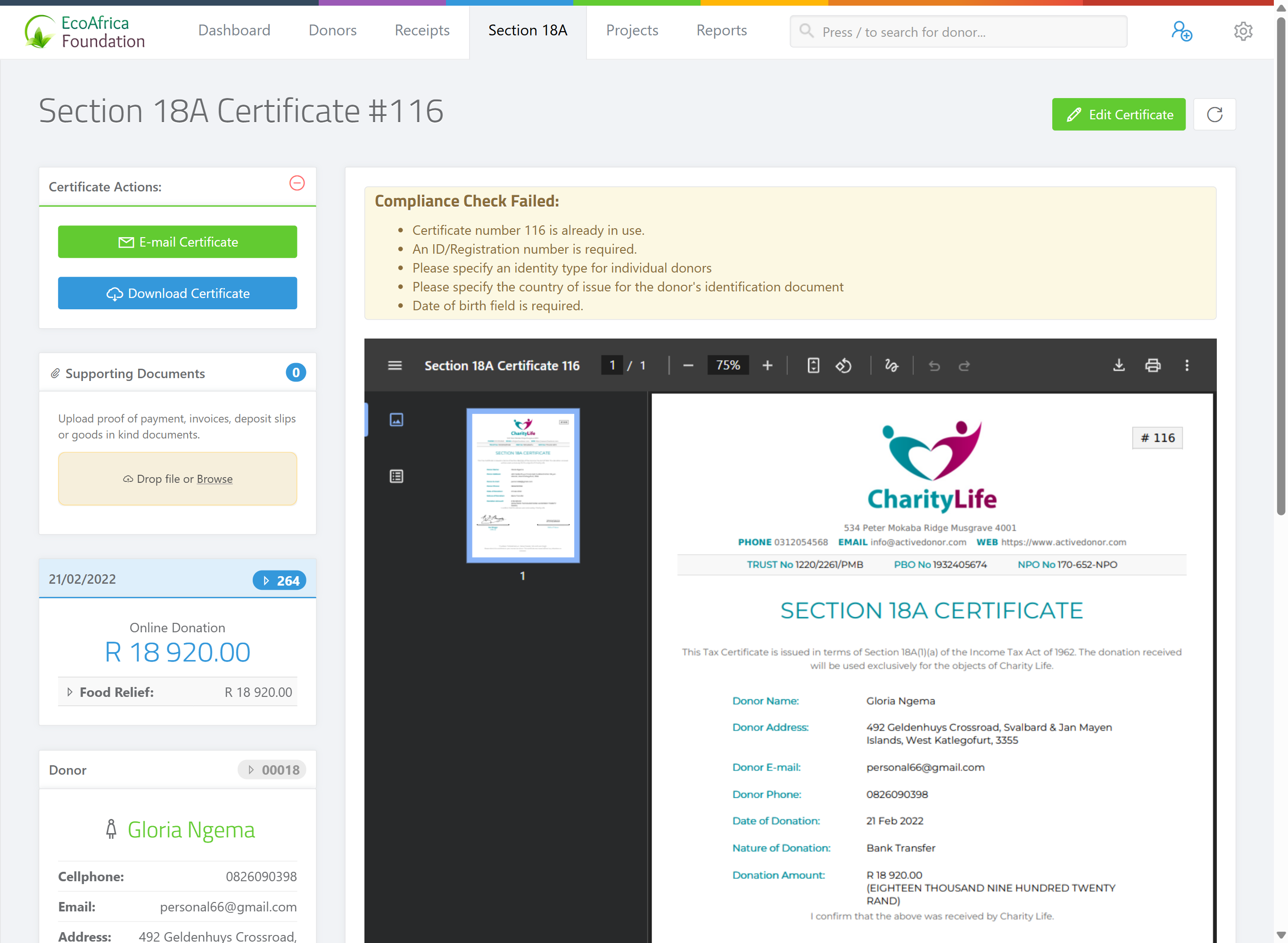
Open the certificate (the Section 18A Certificate # page).
Step 2: Compose the email
Click E-mail Certificate. ActiveDonor opens a compose-email window. Review the recipient, subject and message — the certificate PDF is attached automatically.
Step 3: Send
Send the email. The certificate page then lists it under the certificate's email history, showing the time it was sent and a delivery status.
The "not signed" reminder
If the certificate hasn't been signed, ActiveDonor shows: "This certificate has not been signed. Download and sign this certificate before sending it to [donor]." It also links you to upload an electronic signature for automatic signing.
You can still send an unsigned certificate, but a signed certificate looks more official. To sign automatically, set up an electronic signature — see Electronic signatures on certificates. To sign by hand, download the PDF, sign it, and upload the signed copy — see Uploading your own certificate PDF.
Delivery status
After sending, each email shows a status that updates as the mail system reports back:
| Status | Meaning |
|---|---|
| ⏳ PENDING | Sent, but delivery isn't yet confirmed. |
| 🟢 Delivered | Delivered to the recipient's mail server. |
| 🔴 (red/error) | Delivery failed (for example a bad address or a bounce). |
The history also marks any CC recipients.
Emailing a batch of certificates
From the Section 18A Report you can email many certificates at once:
Step 1: Filter the report
Open the Section 18A report and filter to the certificates you want (for example a tax year, or a status). See Section 18A issued and revoked reports.
Step 2: Compose the batch email
Compose a batch certificate email — ActiveDonor lets you write one message that goes to all the selected donors, each with their own certificate attached.
Step 3: Send
Send. Each certificate is emailed to its own donor and recorded in that certificate's email history.
This is the efficient way to send out a whole tax year's certificates after a bulk issue (see Batch and combined Section 18A certificates).
Re-sending and revoked certificates
- You can email a certificate again at any time; each send is added to the history.
- A revoked certificate can still be emailed, using E-mail Revoked Certificate, so you can notify the donor that the certificate was revoked.
Common issues & solutions
| What you see | What it means | How to fix it |
|---|---|---|
| The E-mail Certificate button is greyed out or hidden. | There's no PDF ready to attach, or no email address is set. | Confirm the certificate generated and the donor has a valid email, then refresh. |
| A sent email shows a 🔴 red/failed status. | Delivery failed. | Check the donor's email address for typos, then re-send. |
| The email stays on ⏳ PENDING. | Delivery confirmation hasn't come back yet. | Check again shortly. Persistent PENDING with no delivery may mean the recipient server is slow or silently dropping the mail. |
| The donor says the certificate still has a SAMPLE watermark. | It was generated during the trial. | Upgrade, refresh the certificate, then re-send — see Refreshing a certificate and removing SAMPLE text. |
FAQ
Do I have to attach the PDF myself? No. ActiveDonor attaches the certificate PDF automatically when you click E-mail Certificate.
Can I email all my donors their certificates at once? Yes — use the batch certificate email on the Section 18A Report. Each donor gets their own certificate attached.
Why is the email button missing? The certificate has no PDF ready or the donor has no email address. Add an email and refresh the certificate.
Can I email a certificate I revoked? Yes — use E-mail Revoked Certificate to notify the donor of the revocation.