Merging duplicate donors
In short: Open the duplicate (source) donor, click Manage then Merge Donor, search for the donor to keep (the target) under Merge Into, tick which contact details, tax info and tags to keep, and click Merge. The source donor is deleted; the target keeps all the receipts, certificates and notes.
Overview
When the same donor has been added twice, merging combines the duplicates into one record. It moves the receipts, certificates and notes from one donor onto another, lets you choose which contact details, tax information and tags to keep, and then removes the duplicate. This is also how you "delete" a duplicate that already has receipts — donors with receipts can't be deleted directly, but they can be merged.
Before you start
You'll need:
- The Manage Donors permission.
⚠️ Important: Merging is permanent and one-directional. You open a source donor and merge it into a target donor; the source donor is deleted afterwards. Double-check which is which before you click Merge.
How merging works
Merging is one-directional:
- The source donor is the one you open (the duplicate you want to remove).
- The target donor is the one you search for and select under Merge Into (the one you keep).
- Receipts, certificates and notes are always moved from the source to the target.
- Contact details, tax information and tags are kept only where you tick them.
- A donor cannot be merged into itself.
Merging two donors
Step 1: Open the source donor
Open the profile of the source donor — the duplicate you want to remove.
Step 2: Open the Merge Donor window
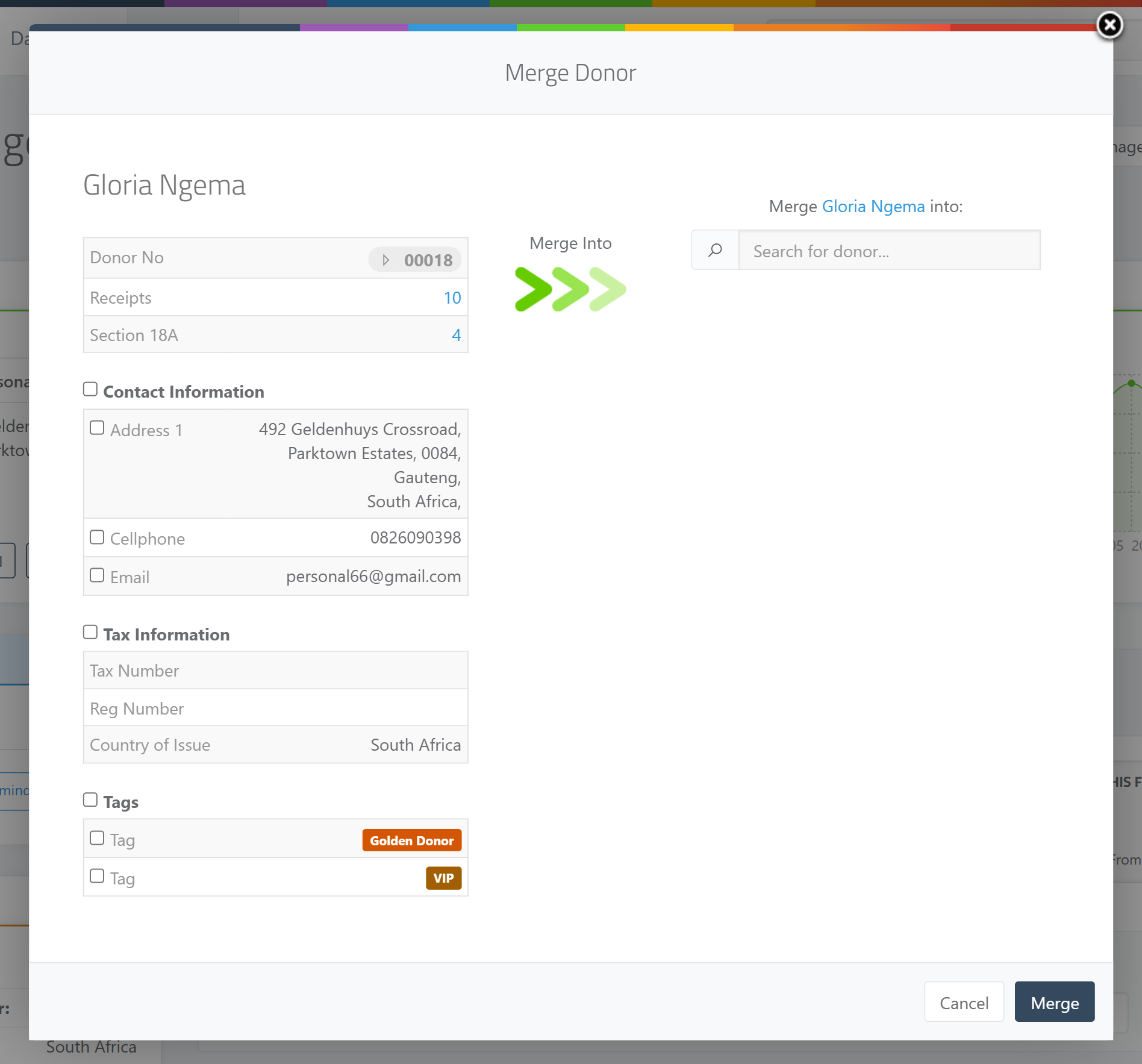
Click the Manage button (the cog at the top-right of the donor's name), then Merge Donor. The Merge Donor window opens with the source donor's details on the left.
Step 3: Choose the donor to keep
On the right, under Merge Into, use the Search for donor... box to find and select the target donor (the one to keep). If you pick the same donor you opened, you'll be warned "Cannot merge a donor into itself. Please select a different donor."
Step 4: Choose what to keep
Once you select the target, both donors' details show side by side with checkboxes, grouped into:
- Contact Information — addresses, phone numbers and emails.
- Tax Information — the donor's tax/ID record.
- Tags — donor tags.
Tick the items you want to keep on the merged donor. Where a section has data, you must tick at least one item in it.
💡 Tip: When you select a target donor, ActiveDonor pre-ticks that donor's items for you. Adjust the ticks to choose exactly what the merged record should keep.
Step 5: Merge
Click Merge. The target donor now holds the combined receipts, certificates and notes plus the contact details, tax info and tags you selected, and the source donor is removed. You're taken to the target donor with the message "Donor merged successfully."
What gets moved
- Receipts, certificates and notes — always moved from the source to the target.
- Addresses, phones and emails (Contact Information) — only the ones you tick are kept; unticked ones are removed from both donors.
- Tax Information — you keep one tax record (the one you tick).
- Tags — only the ones you tick are kept.
What this does not do
- It does not keep the source donor — it is deleted once the merge completes.
- It does not keep unticked contact details, tax info or tags. Anything you don't tick in a section is removed from both donors.
- It cannot be undone. Treat a merge as permanent.
Common issues & solutions
| What you see | What it means | How to fix it |
|---|---|---|
| "Cannot merge a donor into itself. Please select a different donor." | You chose the same donor as both source and target. | Search for and select the other (target) donor under Merge Into. |
| "Please select one Address" / "Please select one Phone" / "Please select one Email" / "Please select one Tax Information" / "Please select one Tags" | That section has data but nothing is ticked. | Tick at least one item in each section that has data, then click Merge again. |
| I merged the wrong donors | The source donor was deleted, so the merge can't be undone. | Double-check the source and target before merging. Contact support if data needs recovering. |
| A donor with receipts couldn't be deleted | Donors with receipts can't be deleted directly. | Merge the duplicate into the donor you want to keep — merging is the correct route for duplicates that have receipts. |
FAQ
How do I combine two duplicate donor profiles? Open the duplicate, choose Manage then Merge Donor, search for the donor to keep, tick what to keep, and click Merge — see How do I merge two duplicate donor profiles? for the steps.
Which donor survives the merge — the one I open or the one I pick? The one you pick (the target, under Merge Into) survives. The one you opened (the source) is deleted.
Can I undo a merge? No. Merging is permanent and deletes the source donor, so check the source and target carefully first.
Will I lose receipts or certificates when I merge? No. Receipts, certificates and notes always move to the surviving donor. Only unticked contact details, tax info and tags are dropped.
How do I delete a duplicate that has receipts? You can't delete it directly. Merge it into the donor you want to keep instead.